

Affiliate Disclosure: This Cursor AI review may contain affiliate links. If you sign up through them, I may earn a small commission at no extra cost to you. I’ve personally used Cursor on real development projects and that hands-on experience shapes everything written here.
Can an AI Code Editor Really Replace Hours of Manual Coding?
Every developer knows the feeling: you’re 45 minutes into writing a REST API endpoint that you’ve written a dozen times before. Same authentication pattern, same error handling structure, same database query boilerplate. You’re not thinking — you’re typing. Or you’ve inherited a 50,000-line codebase from a developer who left six months ago, and you’re spending three hours reading through unfamiliar code just to understand what a single service class does before you can make a one-line change.
These are the real problems Cursor AI is built to eliminate. Not “write your app for you” — the specific, concrete time drains that eat development hours every day. I’ve used Cursor across real projects and this review covers what it actually does, where it genuinely helps, where it falls short, the accurate 2026 pricing (which now has significantly more tiers than most reviews describe), and an honest comparison against GitHub Copilot — the main competitor most developers are actually choosing between.
What Is Cursor AI?
Cursor AI is an AI-powered code editor and IDE built as a fork of VS Code, designed to assist developers with writing, editing, debugging, and understanding code using natural language. Because it’s built on VS Code, every extension you already use — ESLint, Prettier, GitLens, language packs — works in Cursor without any configuration changes. For most developers, the transition from VS Code to Cursor feels like switching to a version of your existing editor that can have a conversation with your codebase.
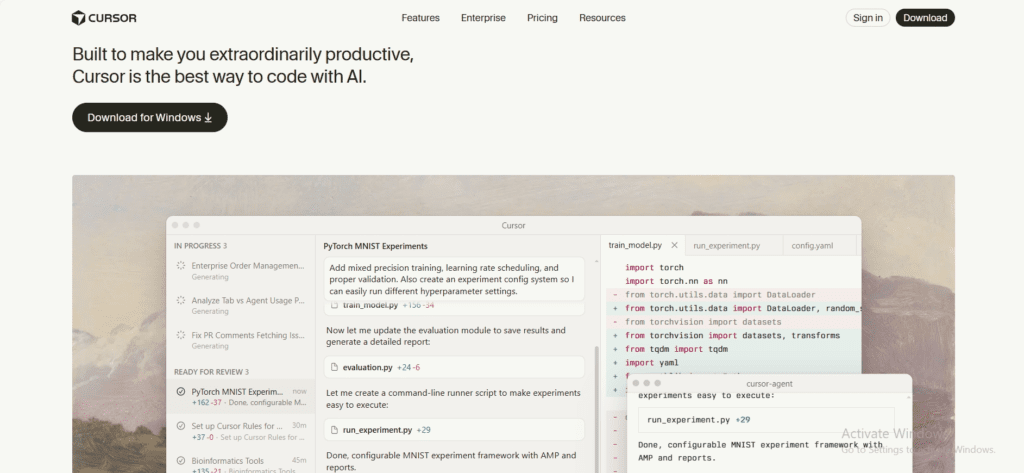
The critical architectural difference from GitHub Copilot and similar tools is that Cursor understands your entire codebase, not just the current file. It indexes your project and uses that project-wide context when generating suggestions — so when you ask it to write a function that processes orders, it knows about your existing Order model, your database schema, your existing validation patterns, and your error handling conventions. That context awareness is what separates Cursor from autocomplete tools and makes it capable of genuinely useful multi-file edits rather than context-free code snippets.
Top 5 Powerful AI Tools for No Code / Low Code to Read Click Here
Cursor AI Code Editor – How It Works Behind the Scenes
Cursor integrates large language models directly into the editor and gives them access to your entire project as context. When you open a project, Cursor indexes it — building an understanding of your file structure, class relationships, function signatures, and code patterns. That index is what powers the suggestions. The practical result is that suggestions and edits are grounded in your actual codebase rather than generated from generic training data, which is why they require less manual correction than traditional autocomplete.
Typical Workflow
The workflow in practice is: open your project, select code or write a task description in plain English, and Cursor analyses the relevant files, dependencies, and logic before generating a suggestion for you to review. Nothing is automatically applied — every suggestion requires your explicit approval, either by accepting inline code with Tab or by reviewing and accepting Composer’s multi-file changes. This human-in-the-loop model is important for professional work: you’re always the decision-maker, and the AI is generating options for you to evaluate rather than making changes autonomously.

Cursor AI Features
1. AI Code Generation with Codebase Context
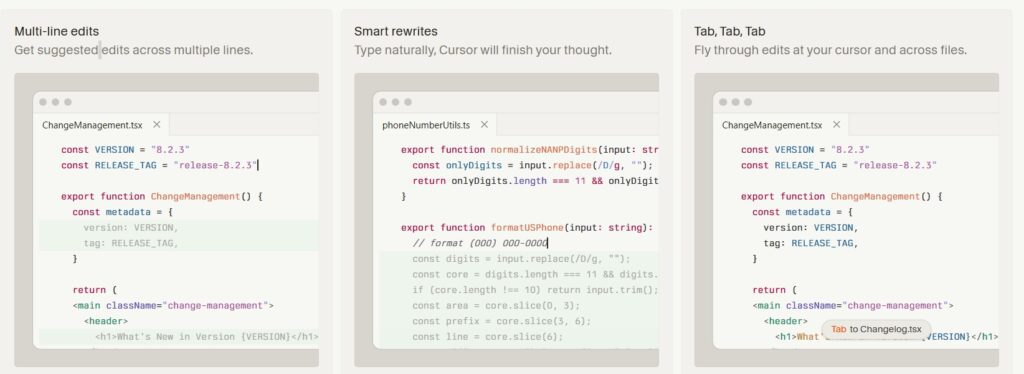
Cursor’s code generation is meaningfully better than generic autocomplete because it uses your project context. Ask it to write a function, an API endpoint, a database query, or a UI component, and the suggestion will reflect your existing naming conventions, your error handling patterns, and your architecture — not a generic example from its training data. For boilerplate-heavy tasks (CRUD operations, authentication flows, form validation, unit tests), this reduces what would be 20–30 minutes of routine typing to seconds of review. The quality of the suggestion scales directly with the quality of your prompt — specific, contextual prompts produce dramatically better output than generic ones.
2. Multi-File Editing & Refactoring (Composer)
Composer is Cursor’s most powerful and distinctive feature. It allows you to describe a change in natural language — “Refactor the UserService to use the repository pattern” or “Add input validation to all POST endpoints” — and Cursor generates a plan that touches multiple files simultaneously, showing you exactly what will change in each file before applying anything. This is the feature that most impresses developers who’ve only used Copilot, because Copilot works file by file while Cursor’s Composer understands that most real changes in a software project span multiple files. For large refactors, interface changes that propagate through a codebase, or architectural improvements that require touching dozens of files, Composer compresses hours of careful manual work to minutes of review.
3.Built-In AI Chat for Code Understanding
The AI chat panel is where Cursor earns its value for developers working with unfamiliar or legacy codebases. You can ask “Explain this class,” “Where is this method used?”, “What does this regex pattern match?”, or “How does the authentication flow work in this project?” — and Cursor answers with reference to your actual code, not generic documentation. For any developer who has ever spent hours reading code that someone else wrote, trying to understand how a complex system fits together before making a change, this is the feature that changes the daily work experience most noticeably. The chat also supports code selection — you can highlight a block of code, ask “what’s wrong with this?”, and get a specific, contextually-grounded answer.
4.Debugging & Error Resolution
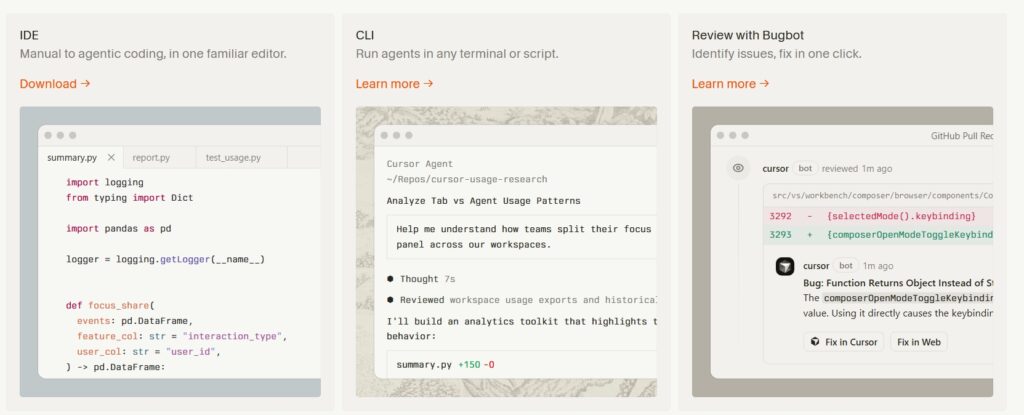
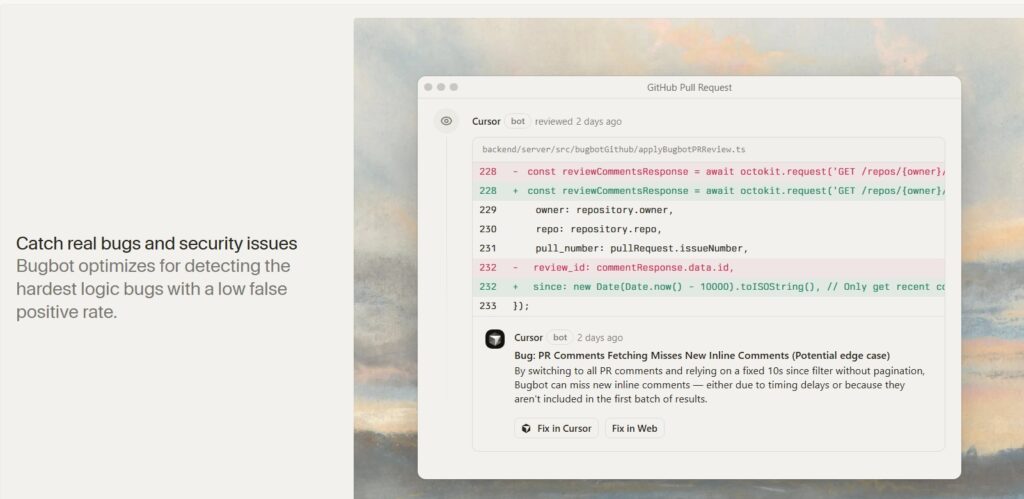
When a test fails or an error appears in the terminal, you can paste the error message directly into Cursor’s chat and ask it to diagnose the problem. Cursor cross-references the error with the relevant code in your project — not just the stack trace, but the files and functions involved — and suggests a fix with an explanation of what caused the issue. For common error patterns (null pointer exceptions, type mismatches, import errors, configuration problems), this significantly reduces the time between “something broke” and “I understand why and how to fix it.” It doesn’t replace understanding your own code, but it dramatically accelerates the diagnostic loop.
5.Language & Framework Support
Because Cursor is built on VS Code, it supports every language and framework that VS Code supports — which means essentially everything developers use in production today. Java and Spring Boot, Python and Django/FastAPI, JavaScript and TypeScript with React/Next.js/Node.js, Go, Rust, C#/.NET, Ruby on Rails, PHP/Laravel, Swift, Kotlin — all work with full AI assistance. The quality of AI suggestions is highest for languages and frameworks that are most heavily represented in the training data (JavaScript, Python, TypeScript), but even for more niche stacks the project-context awareness makes the suggestions more useful than generic autocomplete.
Cursor AI Pricing
Cursor’s pricing has expanded significantly since its early days — it now has six tiers. The key distinction to understand is between “fast premium requests” (interactions with frontier models like Claude Opus or GPT-4) and standard completions (which are unlimited on paid plans). Annual billing on Pro saves approximately 20%, bringing the effective cost to around $16/month.
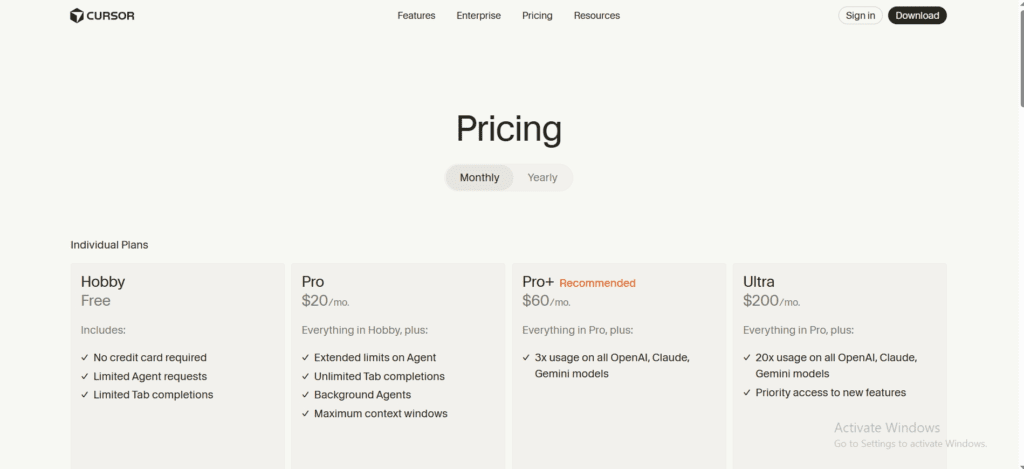
| Plan | Monthly Price | Premium Requests | Best For |
|---|---|---|---|
| Hobby (Free) | $0 | 50/month + 2,000 completions | Evaluation only — hits limits within days of active use |
| Pro | $20/mo ($16 annual) | 500 fast + unlimited slower | Individual developers using AI daily |
| Pro+ | $60/mo | Higher limit | Power users who consistently hit Pro’s monthly limit |
| Ultra | $200/mo | Maximum throughput | Intensive AI coding workflows, agents, heavy usage |
| Business | $40/user/mo | Same as Pro | Teams needing admin controls, SSO, centralized billing, privacy mode enforcement |
| Enterprise | Custom | Pooled across org | Large orgs — SCIM, invoice billing, AI tracking API, compliance |
A few honest notes on Cursor’s pricing. The free Hobby plan sounds generous but in practice runs out of premium requests within the first week of real daily use — it’s better treated as a 7-day trial than a genuine free tier. Pro at $20/month is the realistic starting point for any developer using Cursor as their primary editor. The 500 fast premium requests cover most developers’ monthly usage; heavier users (those running Composer on large refactors multiple times a day) should consider Pro+ at $60. The Pro vs Business distinction is worth understanding: both give you identical AI features and limits — Business adds admin controls, centralized billing, org-wide privacy mode enforcement, and SOC 2 compliance. Small teams of 2–4 developers often run individual Pro accounts rather than Business because the admin features don’t justify the 2x cost increase per seat until team size or compliance requirements demand it.
Cursor AI Code Editor Review – Practical Experience
Real-World Use Case
I used Cursor on a Java Spring Boot backend project — the kind of work where boilerplate is constant and the codebase is large enough that understanding existing code before changing it takes real time. The two areas where it changed the daily workflow most noticeably were API development and codebase navigation. For API endpoints, describing what an endpoint should do in plain language and having Cursor generate the controller, service layer, repository call, and DTO structure reduced the time per endpoint from 30–40 minutes of routine typing to about 10 minutes of reviewing, adjusting, and writing the business logic that actually requires thought. The generated code followed the existing project conventions automatically — the same naming patterns, the same exception handling structure — which meant less cleanup than I’d expected.
The bigger gain was in codebase navigation. When I needed to understand how a complex service class worked before modifying it, I could ask the chat “explain what OrderProcessingService does and what depends on it” and get a clear, accurate summary in 30 seconds rather than spending 20–30 minutes reading through the code and its dependencies. For developers regularly onboarding to new codebases or maintaining legacy systems, this codebase understanding capability is arguably Cursor’s most practically valuable feature. The honest caveat: AI suggestions still require review. Cursor occasionally generates code that’s plausible-looking but subtly wrong — usually at the edges of complex business logic or when the task description is ambiguous. Treating every suggestion as a starting point that needs verification, rather than finished code, is the right mental model for using it professionally.
How to Use Cursor AI
Step 1: Cursor AI Download
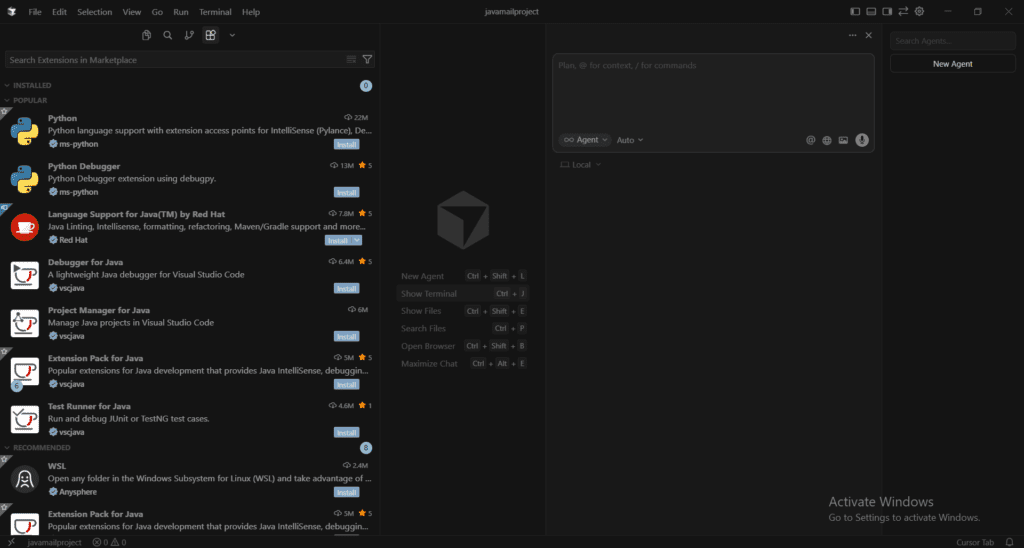
Download Cursor from cursor.com — available for Windows, macOS, and Linux. Installation takes about two minutes. On first launch, Cursor asks if you want to import your VS Code settings, extensions, and keybindings, which most developers should accept. The familiar environment makes the transition nearly frictionless — you’re in a known interface immediately, just with AI capabilities added. Sign in with your account to activate your plan’s AI features.
Step 2: Open Your Project
Open an existing repository or create a new project. Cursor immediately begins indexing the codebase in the background — this typically takes 1–5 minutes for medium-sized projects and is what enables the project-wide context awareness. You can see the indexing status in the bottom bar. Once indexing completes, Cursor has the full context it needs to generate suggestions grounded in your actual code rather than generic patterns.
Step 3: Use AI Features
Three primary interaction modes cover most workflows. Tab-completion provides inline suggestions as you type — accept with Tab, reject by continuing to type. Cmd+K (Ctrl+K on Windows) opens an inline prompt where you can select code and describe what you want to do with it — “add error handling,” “write a unit test for this function,” “convert this to async.” The chat panel (Cmd+L) opens the full conversational interface for code understanding, complex instructions, and Composer multi-file editing. Starting with simple completions builds familiarity before moving to Composer, which has a slightly steeper learning curve but delivers the most significant productivity gains.
Cursor AI vs Traditional Code Editors
The most common comparison isn’t Cursor vs VS Code — most developers who evaluate Cursor are comparing it against GitHub Copilot, which is the incumbent AI coding assistant. Here’s how they stack up across the dimensions that actually matter for the decision:
| Feature | Cursor AI | GitHub Copilot | VS Code (no AI) |
|---|---|---|---|
| Codebase-wide context | Yes — full project indexing | Limited — current file + open tabs | None |
| Multi-file edits | Yes — Composer | No | Manual only |
| AI chat | Yes — codebase-aware | Yes — limited context | No |
| Inline completion | Yes | Yes | No |
| Pro price | $20/mo | $10/mo (individual) | Free |
| VS Code extensions | Full compatibility | Plugin only | Full |
| Debugging AI | Strong | Basic | None |
| Best for | Complex codebases, multi-file work | Simple completions, budget-conscious | Full manual control |
The honest summary: Cursor costs 2x more than Copilot at the individual tier ($20 vs $10), and for developers who only need basic autocomplete on simple projects, Copilot is the more cost-effective choice. For developers working on complex, multi-file codebases where understanding existing code and making cross-file changes are regular activities, Cursor’s additional capabilities — particularly Composer and the codebase-aware chat — justify the price premium. Teams that switched from Copilot to Cursor consistently report 30–40% reductions in debugging time as the most immediately measurable benefit.
Pros and Cons of Cursor AI
Pros
- Project-wide codebase context — suggestions grounded in your actual code, not generic patterns
- Composer multi-file editing handles real cross-file refactors that Copilot cannot
- Codebase-aware AI chat dramatically reduces time spent understanding unfamiliar code
- Full VS Code extension compatibility — zero friction transition for existing VS Code users
- Human-in-the-loop — nothing applied without explicit developer approval
- Bring-your-own-API-key option for heavy users who exceed monthly limits
- Available for Windows, macOS, and Linux
Cons
- Costs 2x more than GitHub Copilot at the individual tier — harder to justify for simple autocomplete needs
- Requires internet connectivity — no offline mode
- Free Hobby plan runs out of premium requests within days of real daily use
- AI suggestions at the edges of complex business logic still require careful review
- Composer learning curve — effective use requires understanding how to write good multi-file prompts
- Privacy considerations — code is sent to AI models unless privacy mode is active (enforced at org level only on Business plan)
Is Cursor AI Safe & Reliable in 2026?
Cursor is designed for developer-controlled workflows — no code change is automatically applied, and you review every suggestion before accepting it. That said, there are two important security considerations for professional use. First, unless privacy mode is active, code you type or paste into AI prompts may be used to improve Cursor’s models. For open-source or personal projects this is typically acceptable; for proprietary or client code, enabling privacy mode is important. On individual Pro plans, developers must manually enable privacy mode; on Business plans, administrators can enforce privacy mode org-wide, which is one of the primary reasons teams with sensitive code upgrade from Pro to Business. Second, AI-generated code should always be reviewed before committing, especially for security-critical sections — authentication, authorisation, data validation, and encryption logic. Cursor accelerates coding; the responsibility for code quality and security remains with the developer.
Is Cursor AI Worth Using in 2026?
For developers who work on complex, multi-file codebases and spend meaningful time either writing boilerplate or understanding unfamiliar code, Cursor AI delivers measurable productivity gains that justify the $20/month Pro plan. The two features that drive real ROI are Composer (multi-file editing) and the codebase-aware chat — both are capabilities that GitHub Copilot doesn’t match, and both address the parts of development work where time is most commonly wasted. Teams reporting 30–40% reductions in debugging time and significantly faster onboarding to new codebases are describing outcomes that are consistent with the tool’s actual capabilities.
The honest caveat is that Cursor is most valuable when you use it deliberately — learning to write effective prompts for Composer, using the chat proactively before diving into unfamiliar code, and maintaining the discipline to review AI suggestions rather than auto-accepting them. Developers who treat it as a magic autocomplete tool get marginal gains; developers who integrate it into their workflow as a genuine AI pair programmer get substantial ones. If you’re evaluating it: download the free Hobby plan, use it for a week on a real project, and judge it by the specific time savings you observe on your actual work. The limitations of the free tier will push you toward Pro quickly, but you’ll have a clear sense of whether the capabilities justify the cost for your specific workflow before spending anything.
What is Cursor AI used for?
Cursor AI is used for AI-assisted software development — writing new code from natural language descriptions, editing and refactoring existing code across multiple files simultaneously, understanding unfamiliar or legacy codebases through conversational AI chat, debugging errors, and generating tests. Its strongest use cases are multi-file refactoring via Composer, codebase comprehension for developers inheriting or onboarding to complex projects, and accelerating boilerplate-heavy development tasks like CRUD APIs, authentication flows, and unit tests.
Is Cursor AI free to use?
Cursor has a free Hobby plan, but it’s better treated as a trial than a genuine free tier. The free plan includes 2,000 code completions and 50 premium AI requests per month. Most developers hit the premium request limit within the first week of daily use. The Pro plan at $20/month (or ~$16/month annually) removes the friction with 500 fast premium requests and unlimited standard completions, and is the realistic plan for anyone using Cursor as their primary editor.
Does Cursor AI replace developers?
No. Cursor AI assists developers by handling repetitive coding tasks, accelerating boilerplate, and reducing the time needed to understand existing code — but the judgment, architecture decisions, business logic, and code review remain entirely the developer’s responsibility. AI-generated code in Cursor requires the same careful review as any other code before committing, particularly for security-critical sections. The right mental model is AI as a pair programmer that writes first drafts and answers questions, not an autonomous developer.
Is Cursor AI good for beginners?
Yes, with caveats. For learning new languages and frameworks, the codebase-aware chat is an excellent teacher — you can ask it to explain what code does, why it’s structured a certain way, and how to improve it. The inline suggestions also help beginners write syntactically correct code faster. The caveat is that beginners who rely too heavily on AI suggestions without understanding them deeply can develop shallow understanding of the code they’re writing. Using Cursor as a learning tool (ask it to explain, not just generate) builds skills; using it purely to generate code you don’t understand doesn’t.
What is Cursor AI pricing in 2026?
Cursor has six pricing tiers in 2026: Hobby (free, 50 premium requests/month), Pro ($20/month or ~$16 annually, 500 fast premium requests), Pro+ ($60/month for power users who hit Pro limits), Ultra ($200/month for maximum throughput), Business ($40/user/month with admin controls, SSO, centralized billing, and org-wide privacy mode enforcement), and Enterprise (custom pricing for large organisations with pooled usage, SCIM, and compliance requirements). Most individual developers start on Pro; teams with compliance requirements or large headcounts typically need Business or Enterprise.
Does Cursor AI support Java and Spring Boot?
Yes. Because Cursor is built on VS Code, it supports every language and framework VS Code supports — including Java and Spring Boot, Python and Django/FastAPI, JavaScript/TypeScript with React/Next.js/Node.js, Go, Rust, C#/.NET, and more. For Java Spring Boot specifically, Cursor is effective for generating controller/service/repository layers, writing unit and integration tests, refactoring service classes, and understanding existing Spring Boot codebases through the AI chat. The project-wide context indexing means suggestions follow your project’s existing Spring Boot conventions rather than generic examples.
Is Cursor AI safe for professional projects?
Yes, with two important caveats. First, enable privacy mode if working with proprietary or client code — without privacy mode, code entered into AI prompts may be used for model training. On Business plans, privacy mode can be enforced org-wide; on individual Pro plans, each developer must enable it manually. Second, always review AI-generated code before committing, especially for security-critical areas (authentication, authorisation, data validation, encryption). Cursor’s human-in-the-loop design — nothing auto-applied — makes this review process practical rather than burdensome.
Is Cursor AI better than traditional IDEs?
For developers who regularly work on complex, multi-file codebases, Cursor offers clear productivity advantages over VS Code without AI — faster boilerplate generation, much faster understanding of unfamiliar code, and the ability to make cross-file changes from natural language descriptions. The more relevant comparison for most developers evaluating Cursor is against GitHub Copilot. Cursor costs $20/month vs Copilot’s $10/month, but includes project-wide context awareness and multi-file editing (Composer) that Copilot doesn’t offer. For simple autocomplete on small projects, Copilot is the more cost-effective choice; for complex codebases, Cursor’s deeper capabilities justify the premium.





I am Ashish Yadav a software engineer and AI tools researcher with over five years of practical experience working with real-world systems and automation. I am founder of CognifyFuture, where I analyzes, tests, and breaks down AI tools with a focus on what actually works—not what’s trending.
My content is built on hands-on usage, not theory. Instead of generic advice, I focuses on real implementation—how AI tools can be used to automate tasks, improve efficiency, and solve any specific business or individual problems.
Through CognifyFuture, My aims is to eliminate confusion around AI by delivering clear, honest, and actionable insights that help users make smarter technology decisions.