
Disclosure: This guide contains affiliate links. If you sign up through them, I may earn a small commission at no extra cost to you. All tools listed were personally tested before writing this.
Have you ever spent hours designing slides only to feel they still look average?
What if your presentation could be created in minutes—well-structured, visually stunning, and audience-ready?
That’s exactly where AI tools for presentations are changing the game in 2026.
From startups pitching to investors to professionals preparing boardroom decks, AI-powered presentation tools now automate design, content structuring, and even storytelling. In this guide, we’ll explore the best AI tools for presentation and help you choose the right one for your needs.
Why do you Trust this Guide
About the Author
Ashish Yadav is the founder of CognifyFuture.com and a passionate technology researcher with 5+ years of practical experience in digital tools, marketing automation, and emerging AI solutions. He has personally explored, tested, and reviewed a wide range of AI tools, content creation platforms, and productivity software in real-world scenarios to provide honest, experience-based insights.
His work focuses on helping readers discover the most effective tools for business growth, workflow automation, and smarter decision-making in the AI-driven digital landscape.
Why AI Tools for Presentation Are Essential in 2026
The Real Problem With Presentations Today
Let me be honest.
Creating a presentation is not hard.
But creating a:
- Well-structured
- Visually clean
- Professional-looking
- Content-rich
presentation in under 1 hour?
That’s where most people struggle.
I tested them for:
- Startup pitch deck
- College assignment
- PDF to PPT conversion
- Blog post to presentation
- Export quality
- Editing flexibility
Here’s what I found.
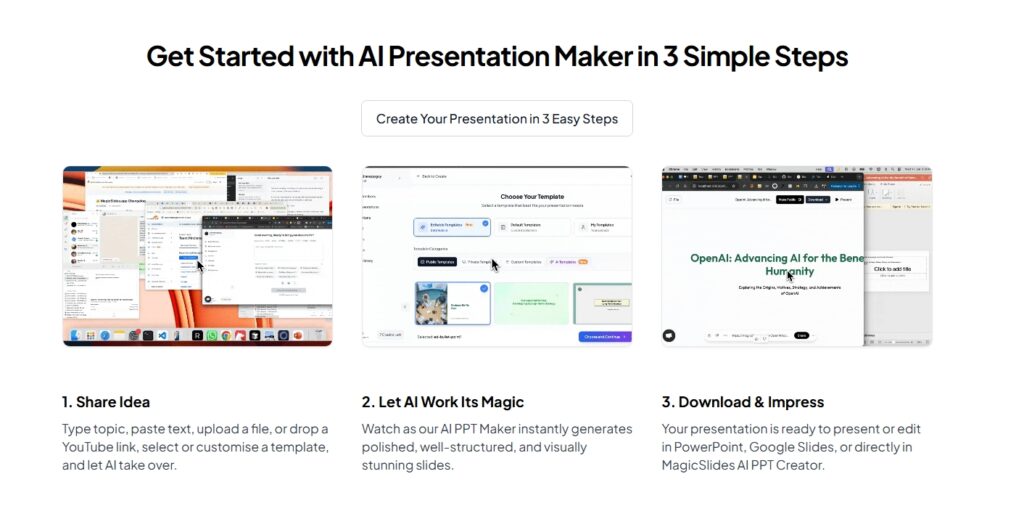
What Problem Do AI Presentation Tools Actually Solve?
Before comparing tools, let’s clarify something important.
Most people don’t struggle with PowerPoint itself.
They struggle with:
- Structuring content logically
- Designing clean layouts
- Writing concise slide text
- Converting reports into slides
- Summarizing long documents
AI presentation tools solve:
- Content generation
- Slide structuring
- Basic design automation
- Fast conversion (PDF → PPT)
But they do NOT completely replace human thinking.
Key Benefits of Using AI Presentation Tools
- Key Benefits of Using AI Presentation Tools
- Save up to 70% time on slide creation
- Auto-generate professional designs
- Smart content structuring and summaries
- Convert documents, text, or ideas into slides
- Ideal for business, education, and creators
Stat Insight: According to productivity studies, professionals spend an average of 6–8 hours per presentation. AI tools for presentation reduce this to 30–60 minutes.
Now let’s Test each tool practically.
1.Gamma App – AI-Powered Storytelling Presentations
What is Gamma App?
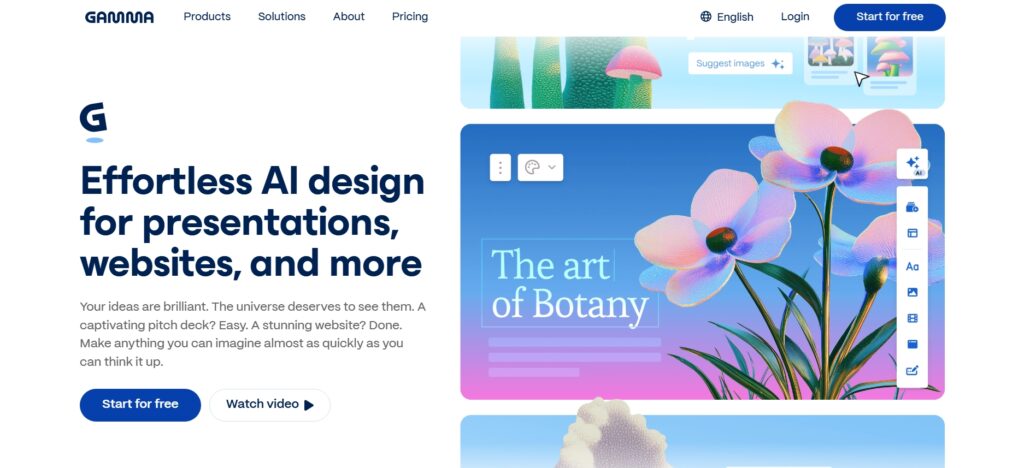
Gamma App is one of the most advanced AI tools for Presentation focused on storytelling, visuals, and modern layouts. Instead of traditional slide-by-slide creation, Gamma builds narrative-driven decks automatically.
Read Detailed Real World Practical Guide of Gamma App Click Here
Key Features
- AI-generated slide structure
- Beautiful layouts without manual design
- No PowerPoint skills required
- Interactive and web-based presentations
Real Use Case
Struggling to create an investor pitch deck fast? A startup founder used Gamma App to generate a professional pitch deck in under 20 minutes—replacing a 2-day design process—and successfully closed seed funding
Pros
- Modern & interactive design
- Great for founders, marketers, creators
- Very fast
- Clean layouts
- Great for storytelling
- No design skill needed
Cons
- Limited traditional PPT animations
- PPT export formatting is not perfect
- Less traditional slide control
- Limited deep customization
Best For: Startups, product launches, storytelling presentations
Gamma App Pricing (2026)
| Plan | Monthly | Annual | AI Credits/Month | Key Features |
|---|---|---|---|---|
| Free | $0 | $0 | 400 one-time (no refresh) | 10 cards/prompt, Gamma branding on all exports |
| Plus | $10/mo | $8/mo | 1,000/month | No Gamma branding, 20 cards/prompt, advanced image models, basic brand kit |
| Pro | $20/mo | $15/mo | 4,000/month | Custom fonts, password protection, per-viewer analytics, API access, 10 custom domains |
| Ultra | $100/mo | $39/mo | 20,000/month | Highest volume, advanced AI models, for power users and agencies |
The free plan’s 400 credits are a one-time allocation that does not refresh monthly — once used, you upgrade or earn more through referrals. For regular use, Plus at $8/month (annual) is the practical entry point: it removes the Gamma watermark and gives 1,000 monthly credits, enough for approximately 20–25 full presentations. Annual billing saves approximately 20–25% across all plans.
2.SlideSpeak – Turn Documents into Presentations with AI
If you are searching for:
- AI convert PDF to PowerPoint slides
- Generate presentation from Word document automatically
- AI summarize report into slides
- Create PPT from text automatically
- Best AI tool for document to presentation
Then you’re not looking for a flashy design tool.
You’re looking for a serious productivity-focused AI presentation tool.
That’s why Here SlideSpeak stands out.
Unlike creative slide builders, SlideSpeak focuses on one powerful workflow:
Turning long documents into structured, professional PowerPoint presentations using AI.
Let’s deep dive into it.
What is SlideSpeak?
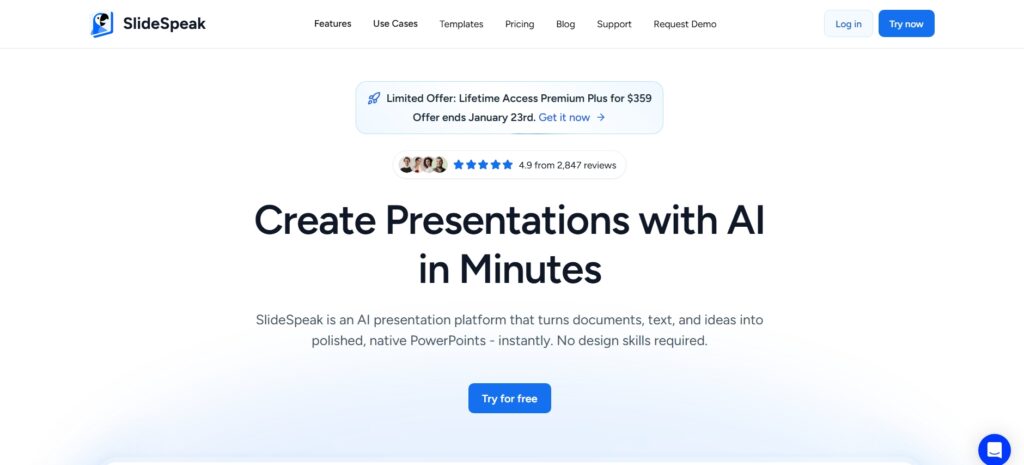
SlideSpeak is a practical AI presentation tool that converts documents, reports, and PDFs into structured slides—perfect for business and corporate use.
What Problem Does SlideSpeak Actually Solve?
Let’s be honest with you.
Creating slides manually from a long report is exhausting and painful.
Typical workflow we mostly follow: We have 30 page Detailed Business Report PDF
- We Read 30-page PDF
- Copy content
- Shorten paragraphs
- Rewrite into bullets
- Adjust formatting
- Repeat 20+ times
This is more painful and exhausting ,That is why most people search for
- Automated PowerPoint generation from PDF
- AI PPT automation
- Document to slides AI
- AI PowerPoint generator for business
So Here SlideSpeak removes the most painful part: manual summarization and formatting.
It is not just an AI slide maker.
It’s an AI document-to-presentation automation system.
SlideSpeak – Step-by-Step Practical Workflow (Real Use Case)
I’ll explain this in a real, practical scenario so you can use it for your Personal Document and personal testing.
Let’s assume I want to:
Convert a 25-page PDF report into a client-ready presentation with speaker notes.
STEP 1: Prepare Source File (Very Important)
Before uploading: Document Have
- Clean formatting
- Remove unnecessary blank pages
- Ensure headings are clear (H1, H2 structure)
- Keep bullet points readable
Best Preferred Format:
- PDF (for reports)
- DOCX (for structured documents)
- PPTX (if improving existing slides)
SlideSpeak works best when your document already has logical structure.
STEP 2: Upload File to SlideSpeak
- Go to SlideSpeak dashboard
- Click Upload Document
- Select PDF / DOCX / PPTX
- Wait for processing (usually 10–30 seconds)
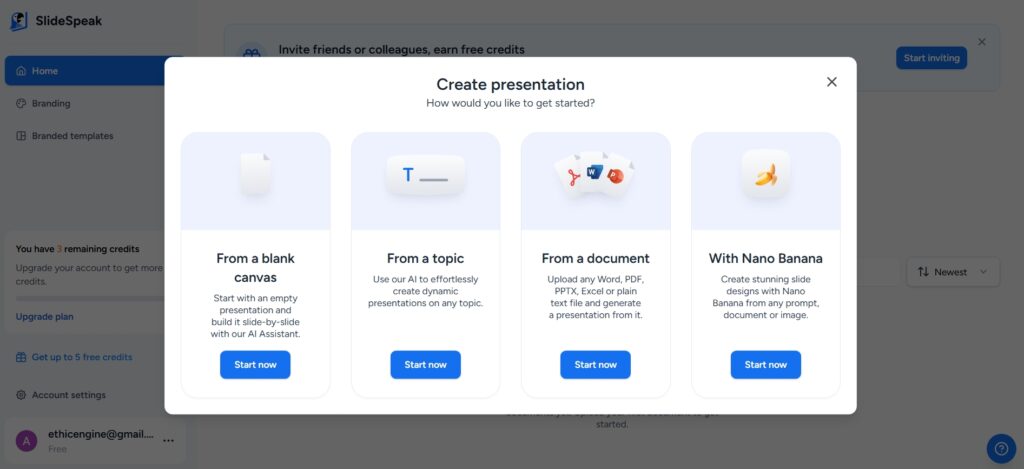
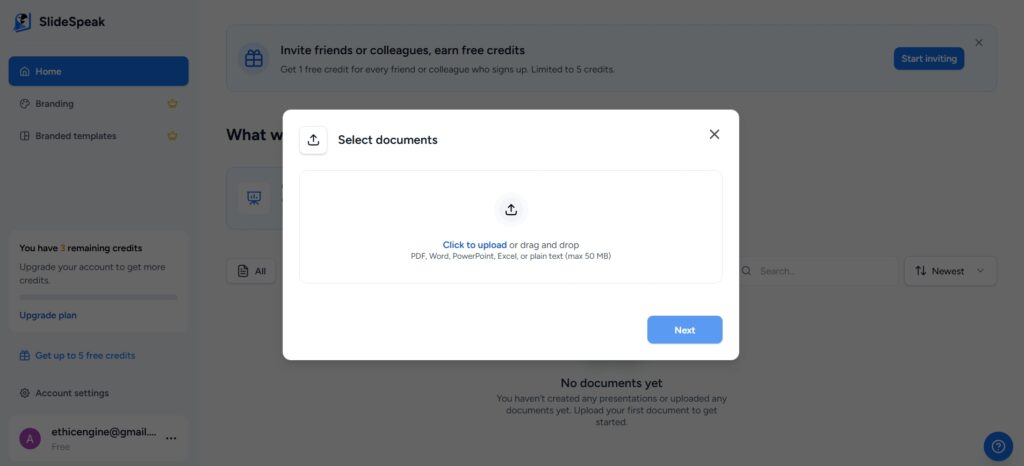
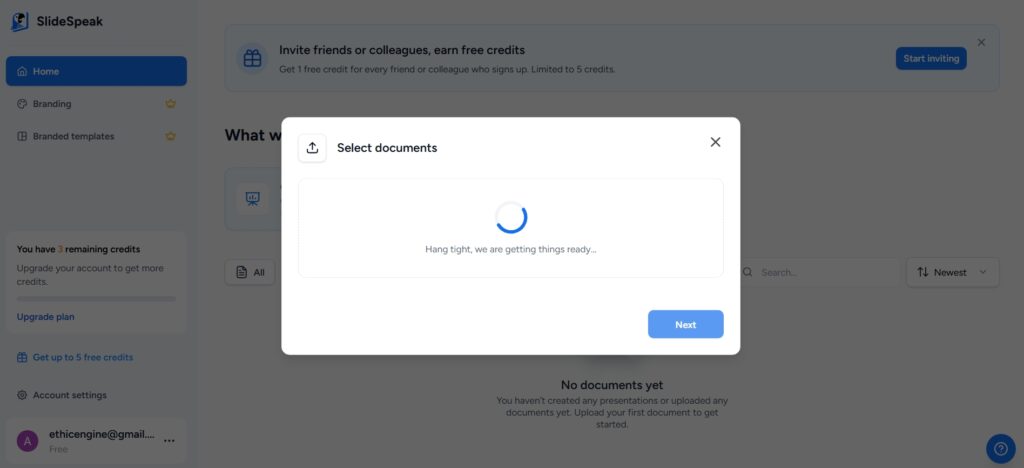
Behind the scenes, SlideSpeak:
- Extracts text
- Identifies headings
- Detects sections
- Breaks content into logical slide chunks
STEP 3: AI Content Extraction & Structuring
Once uploaded, SlideSpeak:
✔ Automatically:
- Detects section titles
- Converts paragraphs → bullet points
- Shortens long explanations
- Suggests slide titles
Example:
📄 PDF Content:
Artificial Intelligence is transforming small businesses by automating customer support, reducing operational cost, and improving marketing efficiency.
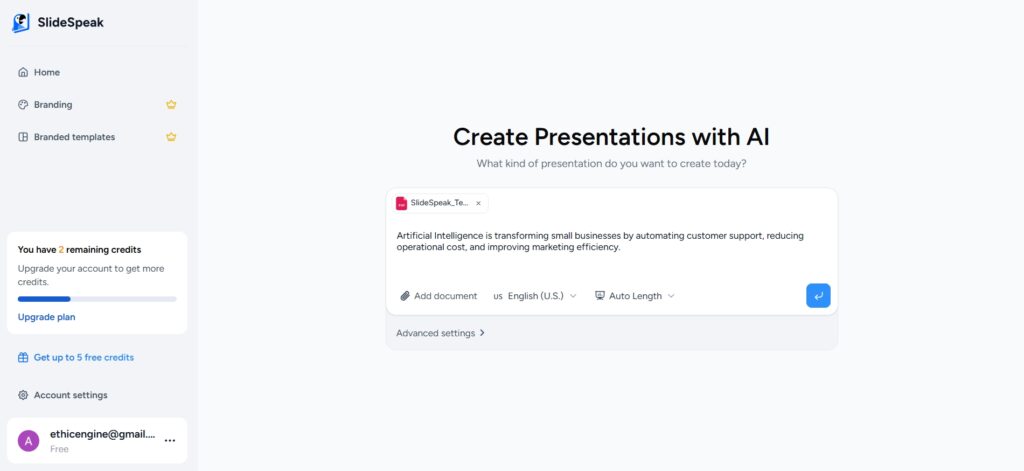
🖥 Slide Output:
Slide Title:
- AI in Small Business
- Automates customer support
- Reduces operational costs
- Improves marketing efficiency
This is where Slidespeak saves 70% manual work.
STEP 4: Choose Slide Style / Template
You can:
- Keep default theme
- Select pre-built template
- Adjust font style
- Change layout type
Practical Tip:
If you’re creating client presentation → choose minimal professional template.
If you’re making educational slides → choose clear typography & larger fonts.
STEP 5: AI Slide Refinement (Most Important Step)
Now comes the powerful part.
You can use prompt commands inside SlideSpeak like:
- “Make slides more concise”
- “Add speaker notes”
- “Make it persuasive for investors”
- “Add statistics where possible”
- “Convert to storytelling format”
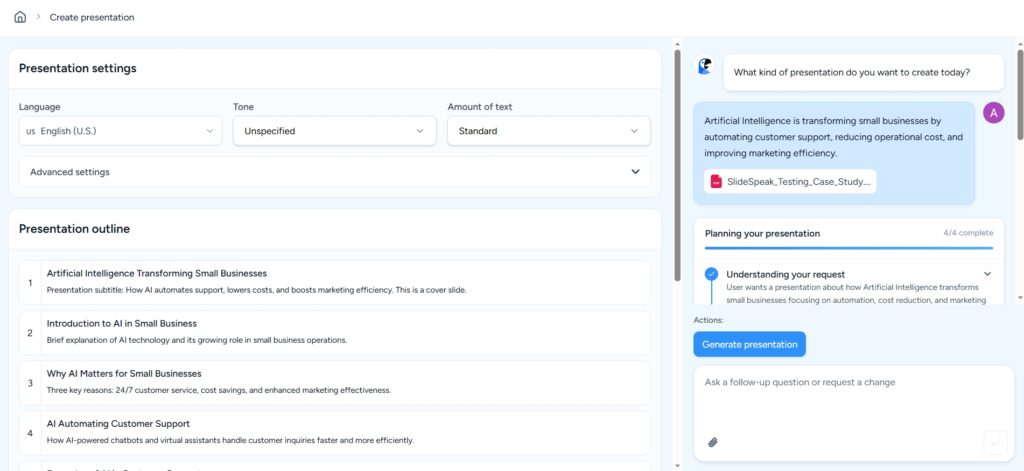
Example workflow:
- Generate slides
- Type:
- “Rewrite slides for startup pitch deck tone”
- AI updates slide language accordingly
This is practical productivity gain.
STEP 6: Add Speaker Notes Automatically
You can ask:
“Generate detailed speaker notes for each slide.”
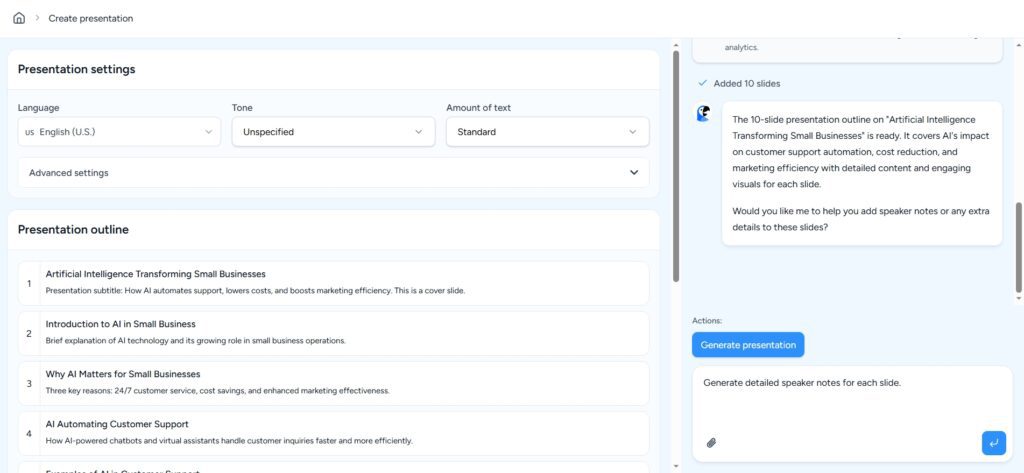
SlideSpeak will:
- Expand bullet points
- Add explanation
- Add transition statements
- Create talking script
Perfect for:
- YouTube presentation videos
- Webinar scripts
- Client pitch rehearsals
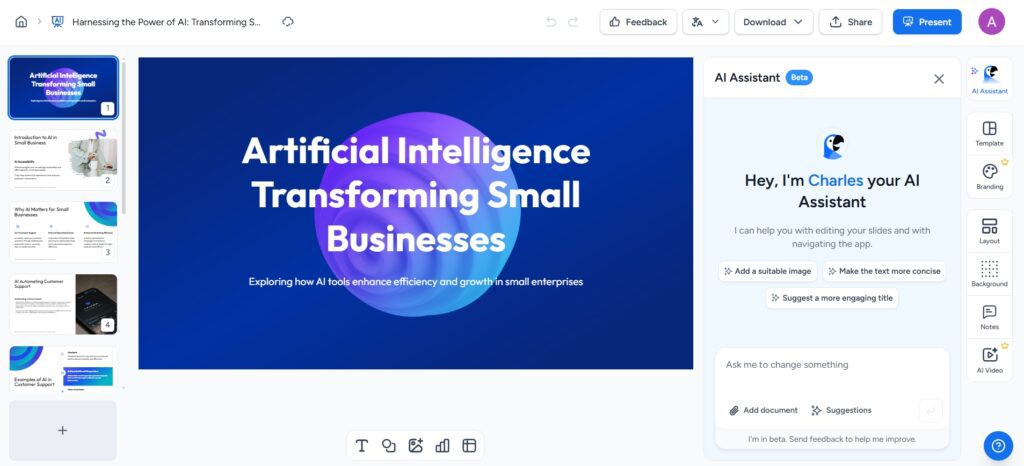
STEP 7: Manual Editing (Human Touch Required)
Now refine:
- Remove repetitive slides
- Adjust slide order
- Add charts manually (if needed)
- Insert images (AI doesn’t always add strong visuals automatically)
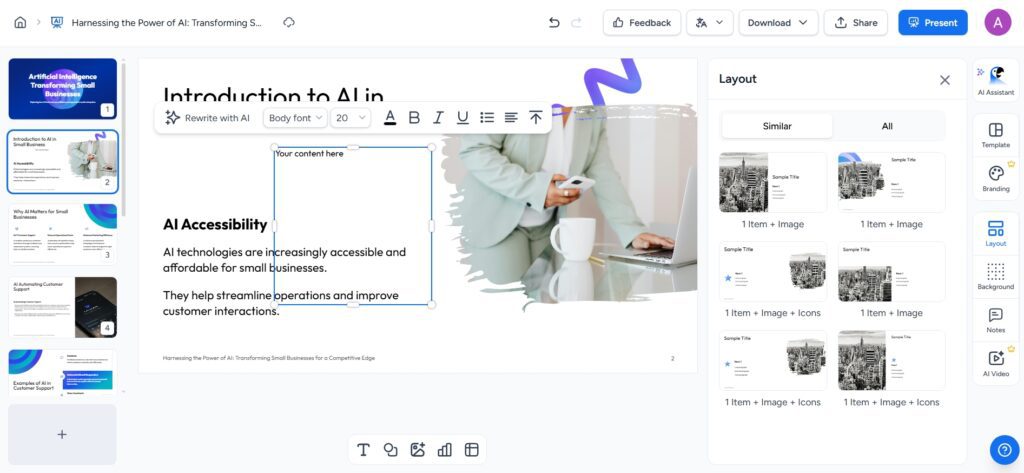
Remember:
- AI = 80% done
- Human = Final 20% polish
STEP 8: Export Presentation
Available export formats:
- PPTX (PowerPoint)
- Google Slides compatible file
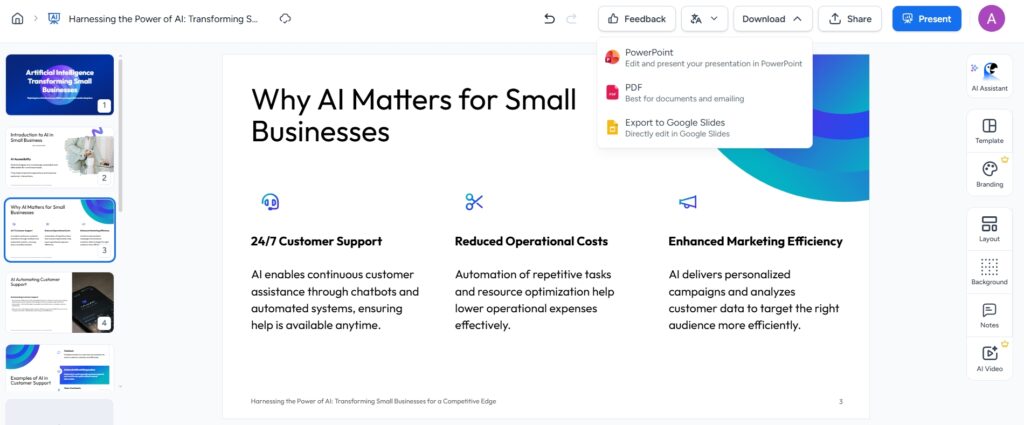
Download and open in:
- Microsoft PowerPoint
- Google Slides
Then final branding:
- Add logo
- Adjust color theme
- Add animations
Key Features
- Upload Word, PDF, or text files
- AI summarizes long documents
- PowerPoint-ready exports
- Ideal for corporate decks
Pros
- Business-focused output
- Strong summarization
Cons
- Less creative design than Gamma
Best For: Consultants, managers, corporate professionals
3.MagicSlides – AI Presentation Tool for Google Slides Users
What is MagicSlides?
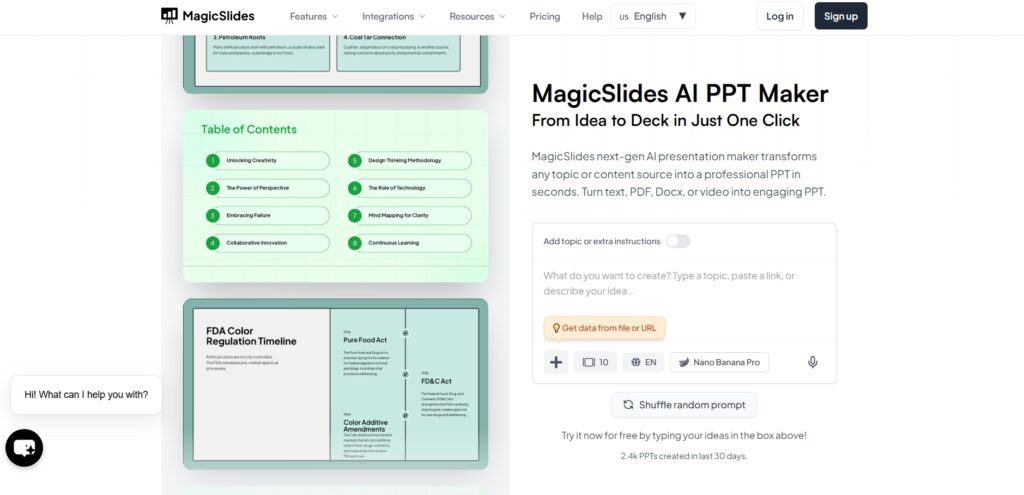
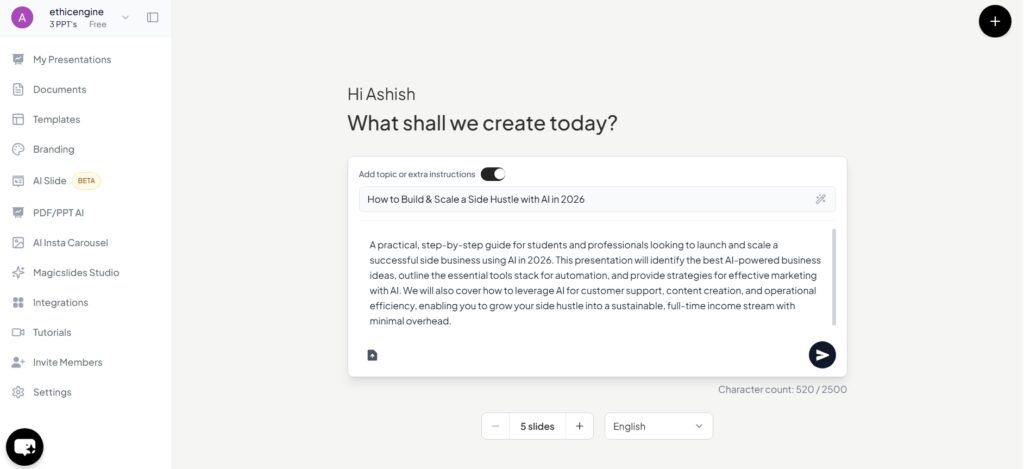
MagicSlides is an AI-powered add-on designed specifically for Google Slides, making it one of the most accessible AI tools for presentation creation in 2026. Unlike standalone presentation platforms, MagicSlides works directly inside Google Slides — meaning there’s no new software to learn.
For students, educators, marketers, and business professionals who already use Google Workspace, this makes MagicSlides extremely convenient.
What Problem Does MagicSlides Solve which other Tools are not?
1. Works Inside Google Slides (No Export Hassle)
Most AI slide tools generate presentations on their own platform and force you to:
- export
- reformat in Google Slides,
- fix spacing & layouts.
MagicSlides creates slides directly inside Google Slides, so you don’t waste your time to importing or fixing format breaks.
Other tools force an extra step — MagicSlides skips it.
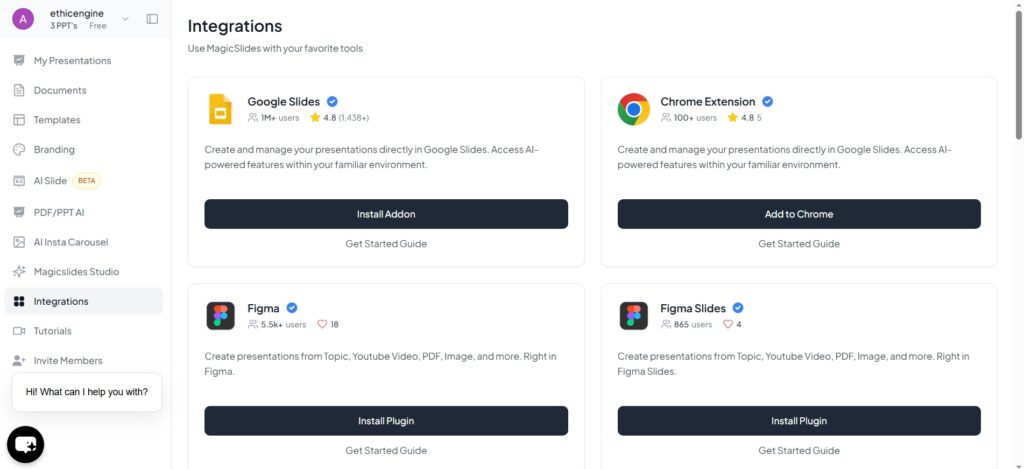
MagicSlides also Integrates with Figma, ChatGPT, Telegram, and many other Tools.
2.Generate Slides from YouTube Videos
MagicSlides takes a YouTube link → and turns it into a slide deck.
Other tools mostly require:
- text input
- uploading PDFs
- manual summarizing
- This is powerful for creators, teachers, and students.
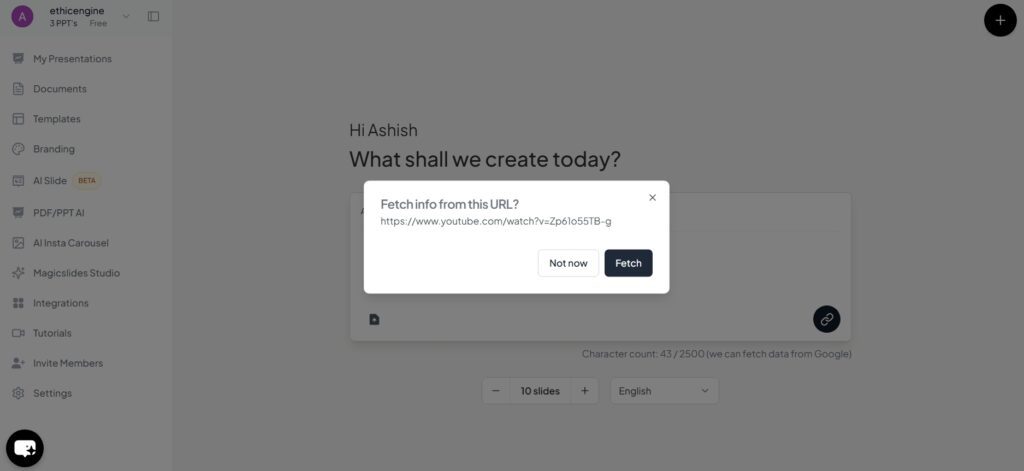
Paste a blog or web page link → MagicSlides reads it + creates structured slides.
Other tools usually rely only on:
3.Generates from Any URL / Web Article
- plain text input
- manual copy–paste
MagicSlides does automatic content extraction from URLs.
4.Fastest Minutes-to-Ready Slides
Some tools still require:
- multiple prompts
- manual formatting
- design tweaks after output
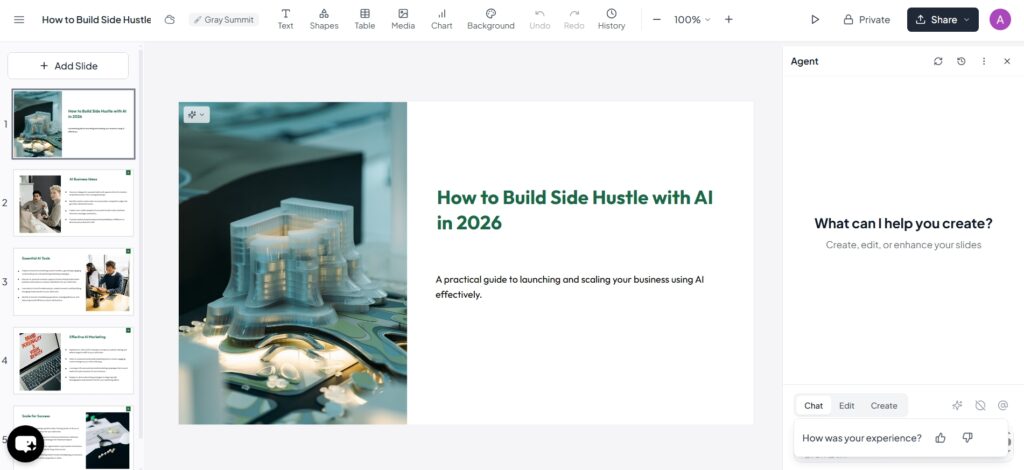
MagicSlides → One prompt → structured slides → in real time.
Less tweaking, more done.
5.Better Bullet Summarization
Other tools often create:
- big chunks of text
- unstructured content
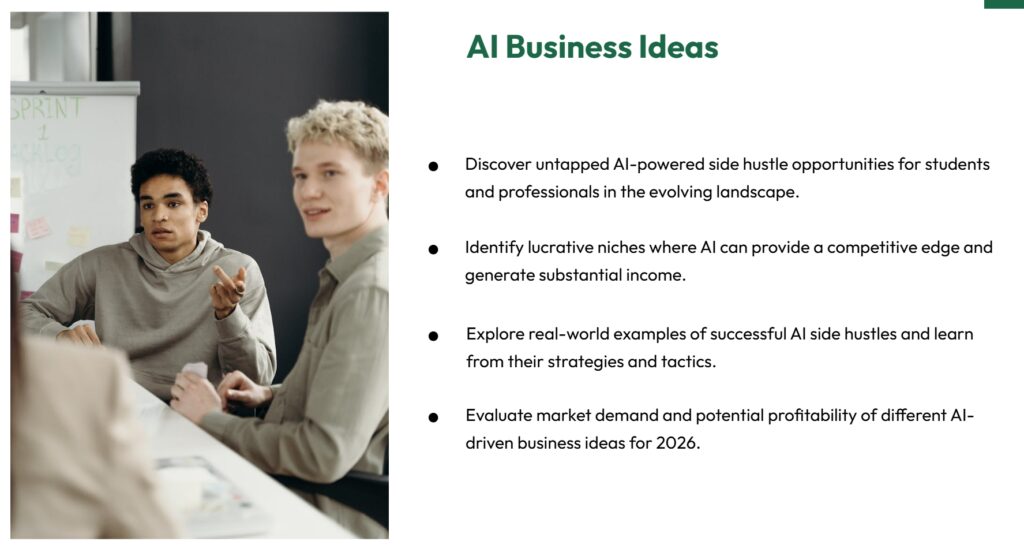
MagicSlides generates clean, concise bullet points suitable for presentations straight away.
6.Context-Aware Slide Flow
Instead of random slide ordering, MagicSlides tends to produce:
- logical flow (Intro → Points → Conclusion)
- topic segmentation
Many alternatives just “dump content” without structure.
Summary — What Others Don’t Solve but MagicSlides Solve.
| Feature / Problem | MagicSlides | Most Other AI Tools |
|---|---|---|
| Inside Google Slides | ✅ | ❌ |
| Generate from YouTube link | ✅ | ❌ |
| Generate from Web URL | ✅ | Limited |
| Automatic structured flow | ✅ | Partial / No |
| Clean bullet summarization | ✅ | Often No |
| Minimal tweaking required | ✅ | Needs manual cleanup |
How MagicSlides Works (Step-by-Step)
Step 1: Install Add-On
- Go to Google Slides
- Install MagicSlides add-on
- Open it from Extensions menu
Step 2: Enter Input
You can generate slides from:
- A topic
- Long text
- Blog URL
- YouTube link
- PDF content
Step 3: AI Processing
MagicSlides:
- Summarizes content
- Breaks into slide structure
- Creates titles + bullet points
- Adds images (depending on plan)
Step 4: Instant Slide Creation
- Slides appear inside your Google Slides
- Fully editable
- Download as PPT if needed
Practical Use Case Example
Scenario: Startup Founder
- Pastes business idea
- AI generates:
- Problem slide
- Market size
- Business model
- Revenue plan
- Edits numbers → Presentation ready
Time taken: ~2 minutes.
MagicSlides Pricing (2026)
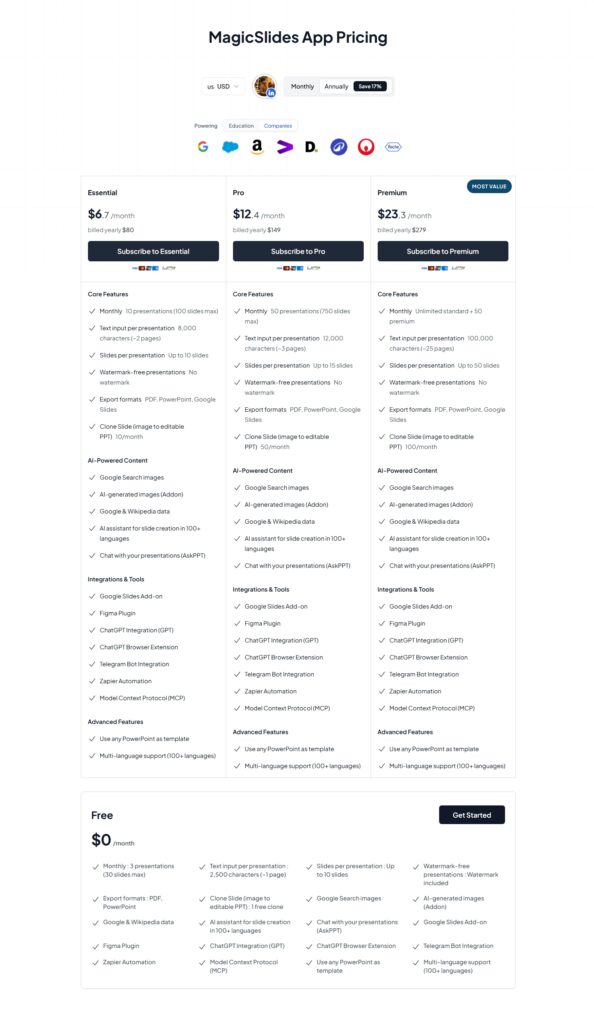
MagicSlides 2026 verified pricing: Free tier — limited generations per month, basic features, watermark on output. Pro at $7/month (annual billing) or $10/month monthly — unlimited slide generations, no watermark, priority processing, YouTube link input, URL/web article input, API access. Team plans available for Google Workspace environments with centralised billing. At $7/month annual, MagicSlides is one of the most affordable paid AI presentation tools available — comparable to the cost of a single stock photo. The Google Slides native integration eliminates the export-and-reformat friction entirely, which is its strongest practical advantage over other tools.
- Limited slide generations
- Basic features
- Watermark (sometimes)
Paid Plan Includes:
- More slide credits
- Faster generation
- Higher word limits
- Export options
Pros and Cons
Pros
- Extremely fast slide creation
- Works directly inside Google Slides
- Generate from YouTube & URL
- Budget-friendly
- Simple interface
- Good for beginners
Cons
- Limited design customization
- Slides may require manual polishing
- Not ideal for high-end design-heavy decks
- AI content sometimes generic
Who Should Use MagicSlides?
Perfect For:
- Students
- Teachers
- Startup founders
- Corporate professionals
- Bloggers converting articles into slides
Not Ideal For:
- Graphic designers
- Agencies needing cinematic-level presentations
- Users wanting heavy animation & advanced visual design
4. Slidesgo
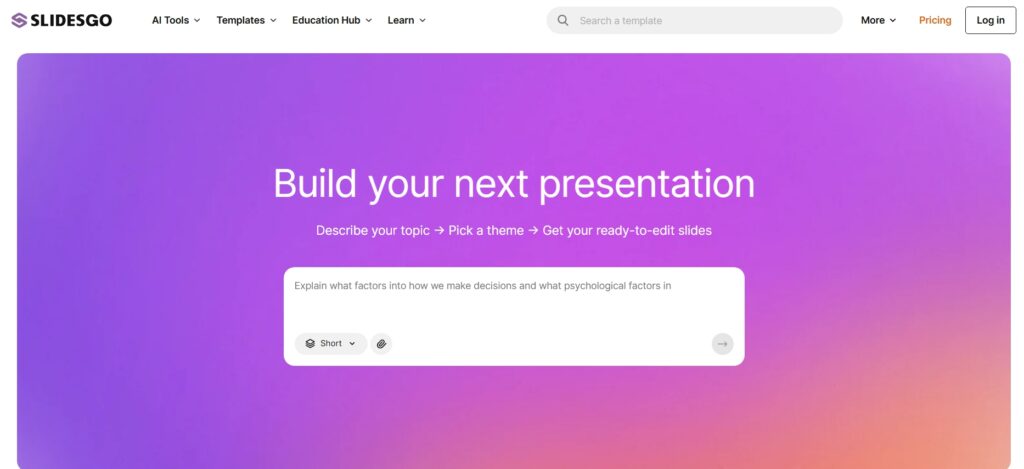
If you’ve ever opened PowerPoint or Google Slides and stared at a blank slide for 20 minutes, struggling with presentation design, layout structure, or visual storytelling — you already understand the exact problem Slidesgo templates are built to solve.
What Problem Slidesgo Actually Solves (That Many Other Tools Don’t)
Core Problem:
People waste their time designing slides instead of focusing on content.
Most users
- Don’t know design principles
- Don’t have branding skills
- Need slides urgently
- Want something that “looks professional” without hiring a designer
Slidesgo solves this by giving:
- Pre-designed, structured templates
- AI-generated slide drafts
- Ready-to-edit layouts for different industries
What Slidesgo Solves Better Than Other AI Tools
There are many AI presentation tools in 2026 — but Slidesgo has a unique position itself.
1.Massive Template Library (Not Just AI Text Generator)
Unlike pure AI tools that only generate content, Slidesgo provides:
- Thousands of ready-made visual templates
- Education, business, marketing, medical, startup, pitch deck themes
- Fully editable layouts
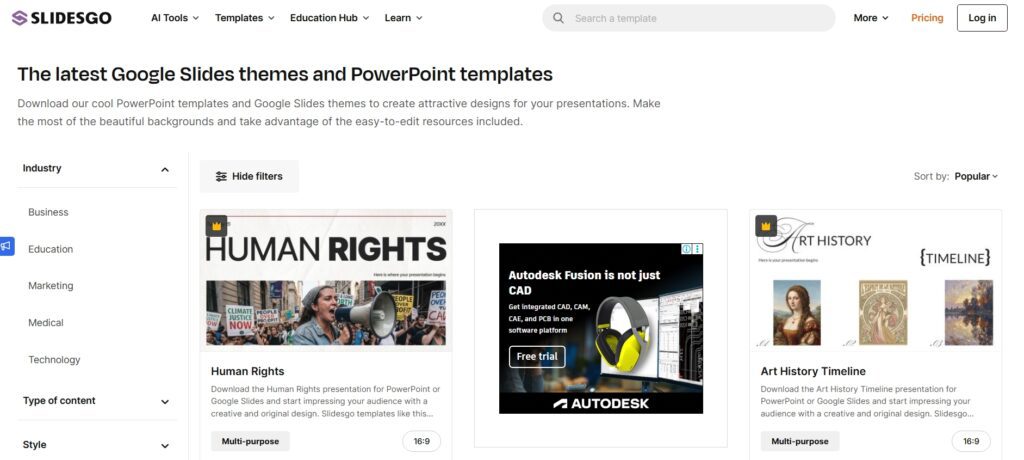
Many AI slide generators create generic corporate slides but Slidesgo focuses heavily on design aesthetics first.
2.Works Seamlessly with Google Slides & PowerPoint
Some AI tools force you to use their platform.
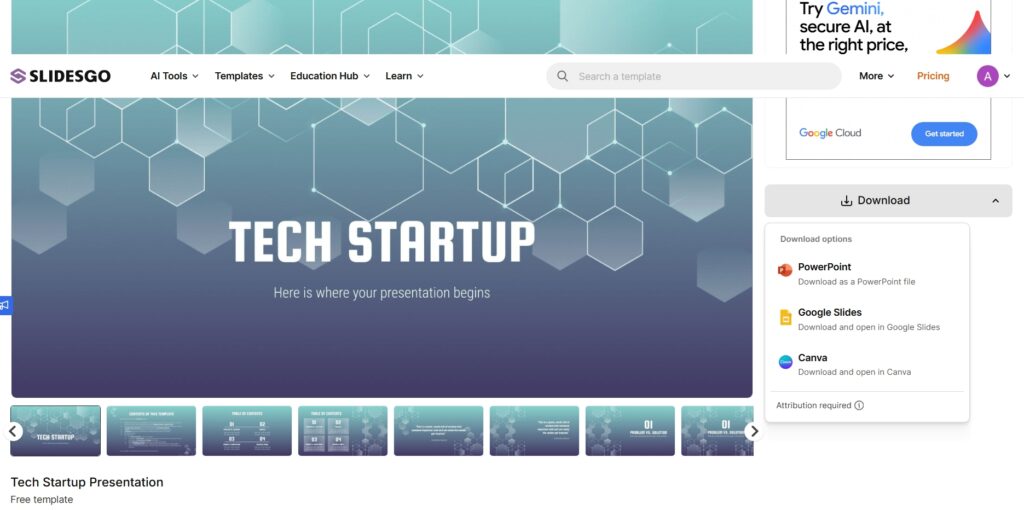
Slidesgo allows:
- Download as PPTX
- Open directly in Google Slides
- Even integrate with Canva
That flexibility matters.
3.Ideal for Students & Teachers (Big Advantage)
Most AI tools focus on business users.
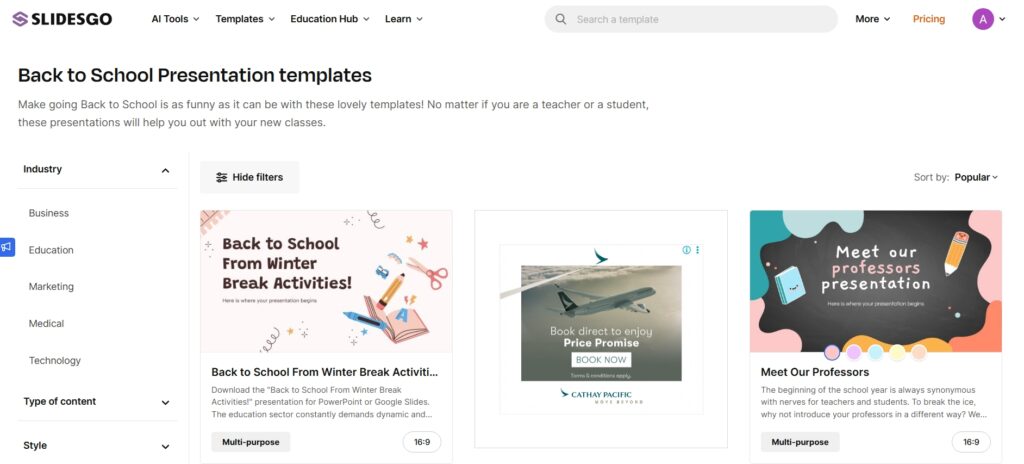
- Lesson plan templates
- Educational infographic slides
- Subject-specific themes (math, science, history)
This makes it very strong in the education niche.
Practical Use Case (Real-World Examples)
Let’s talk practical — not theory.
1.College Student Presentation
Scenario:
A student needs to prepare a “Digital Marketing Trends in 2026” presentation.
Instead of:
- Designing slides from scratch
- Searching for icons and fonts
They:
- Search Slidesgo for “Marketing Presentation”
- Choose a modern template
- Use AI to generate slide content outline
- Edit and customize
- Time saved: 2–3 hours.
2. Startup Founder Pitch Deck
A founder preparing for investor meetings can:
- Select a pitch deck template
- Replace placeholder text
- Add startup data
Slidesgo gives structure:
- Problem
- Solution
- Market size
- Business model
- Traction
- That structure itself is valuable.
Pricing
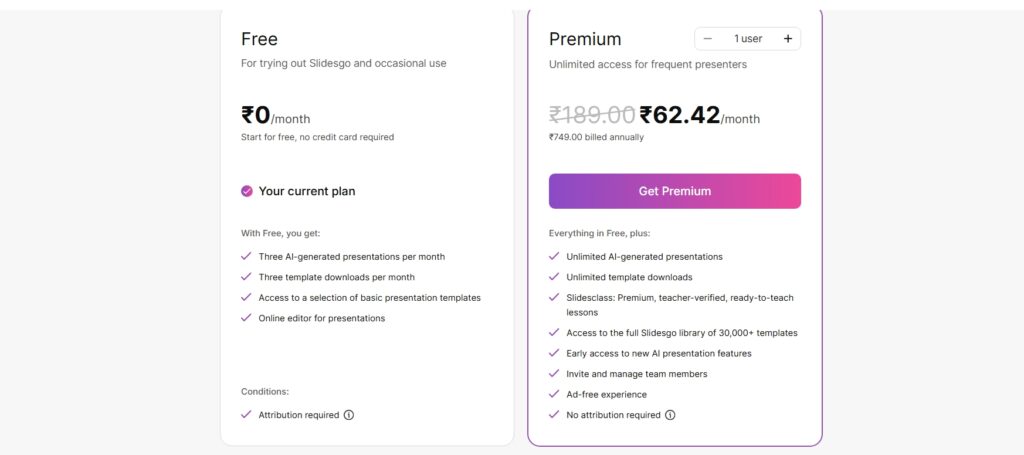
Slidesgo uses a freemium model. Free plan: access to thousands of templates with mandatory attribution (“Designed by Slidesgo”) — suitable for students and personal use. Premium at approximately $5.99/month (annual billing) or $8.99/month monthly — removes attribution requirement, full template library including exclusive designs, AI slide generation features, and clear commercial usage rights. Educational plans available at reduced rates for verified teachers and students. For most individual creators, the free plan provides sufficient template access; premium is primarily needed for commercial work where attribution is not acceptable.
Free Plan
- Limited downloads
- Attribution required
- Access to many templates
Premium Plan
- No attribution
- Unlimited downloads
- Full template access
- More AI features
Who Should Use Slidesgo?
Best For:
- Students
- Teachers
- Bloggers creating webinars
- Small business owners
- Freelancers
- Beginners
If you need quick, attractive slides — this is a good fit.
Who Should NOT Use It?
- Enterprise branding teams
- Professional designers
- People needing advanced motion graphics
- Teams needing deep collaboration tools
For high-end investor decks with strict brand guidelines, you might need a more customizable AI platform.
Pros and Cons (Honest View)
Pros
- Huge design library
- Beautiful, modern templates
- Beginner-friendly
- Affordable
- Strong education support
- AI saves drafting time
- Works with major platforms
Cons
- AI content can feel generic
- Free version requires attribution
- Templates are popular (less unique)
- Limited deep customization compared to pro design tools
- Not ideal for heavy animation-based presentations
5.Slidebean
If you ever tried to build a startup pitch deck, you already know the pain.
You open PowerPoint… move boxes for 30 minutes, adjust fonts, align icons, and still your slides don’t look “investor ready.”
That’s exactly where Slidebean AI comes in.
But is it just another AI PPT maker? Or is it something more serious for founders?
Let’s break it down practically.
What is Slidebean?
Slidebean is an AI-powered presentation platform designed mainly for startups and founders who need professional pitch decks very fast.
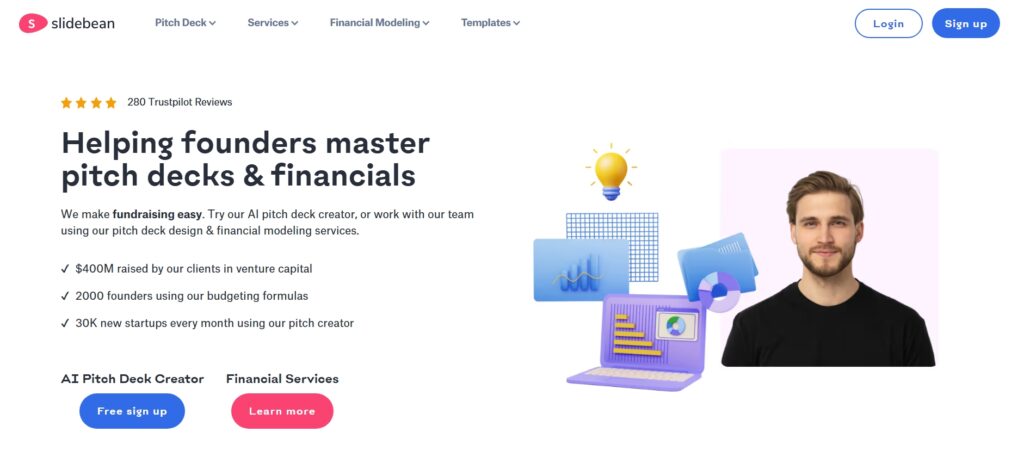
Unlike generic tools, Slidebean AI presentation software focuses heavily on:
- Startup pitch decks
- Investor storytelling
- Financial projections
- Valuation modeling
It is not just a design tool. It is built around the startup fundraising ecosystem.
What Problem Does Slidebean Solve (That Others Don’t)?
Most AI presentation tools focus on design automation, but Slidebean focuses on fundraising strategy.
Here is the difference:
| Normal AI PPT Tool | Slidebean AI |
|---|---|
| Generates slides from text | Structures investor-ready pitch decks |
| Focus on design | Focus on storytelling + valuation |
| Generic templates | Startup-tested pitch deck frameworks |
| No financial modeling | Built-in Slidebean financial model |
Unique Problem It Solves:
- Founders don’t know what investors expect.
- They don’t know slide order.
- They don’t know how to calculate valuation.
- They struggle to present numbers clearly.
Slidebean solves this with:
- Startup financial model templates
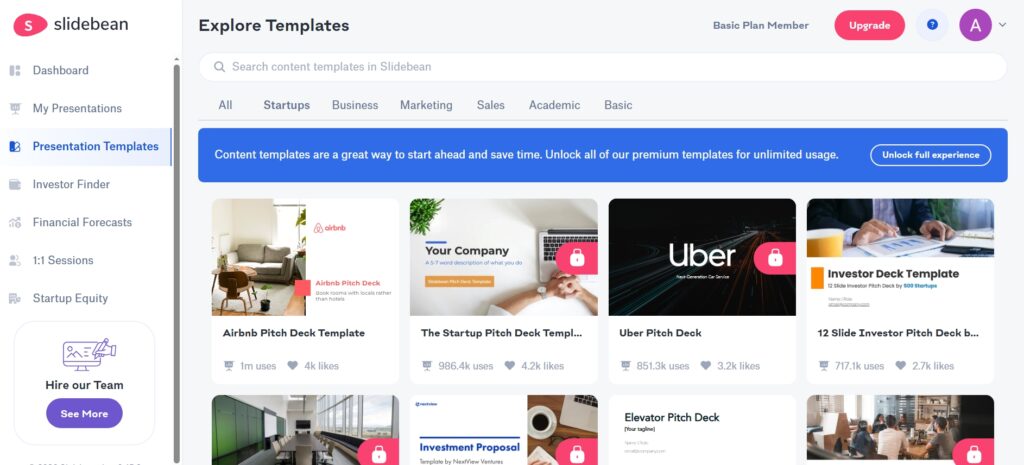
- Built-in Slidebean valuation tools
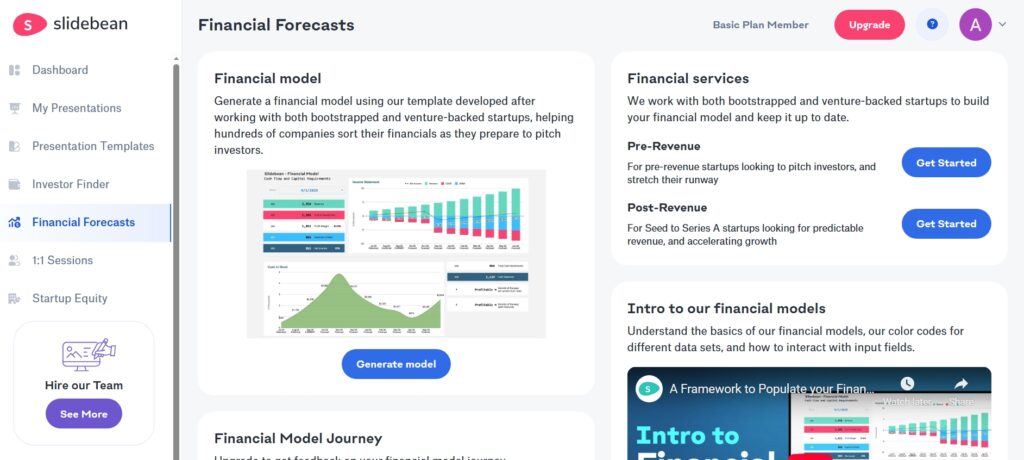
- Real Slidebean pitch deck examples
- Pre-built pitch deck frameworks
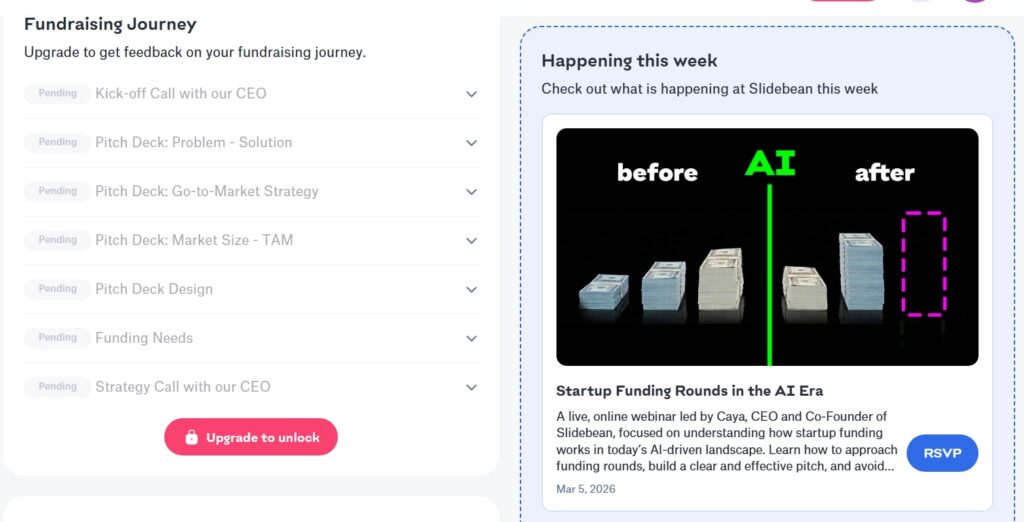
Real Practical Use Case
Example: Early-Stage SaaS Founder
Imagine you’re launching an AI SaaS product.
You need:
- Problem slide
- Market size
- Traction
- Revenue model
- Financial projections
- Valuation
With Slidebean AI PPT, you:
- Choose startup pitch template
- Fill structured content prompts
- Add financial numbers
- Use Slidebean financial model
- Export investor-ready deck
Instead of 2 weeks → You can build it in 2–3 days.
Slidebean Financial Model & Valuation
This is where it becomes different.
Unlike most AI PPT makers, Slidebean includes:
- Revenue projection models
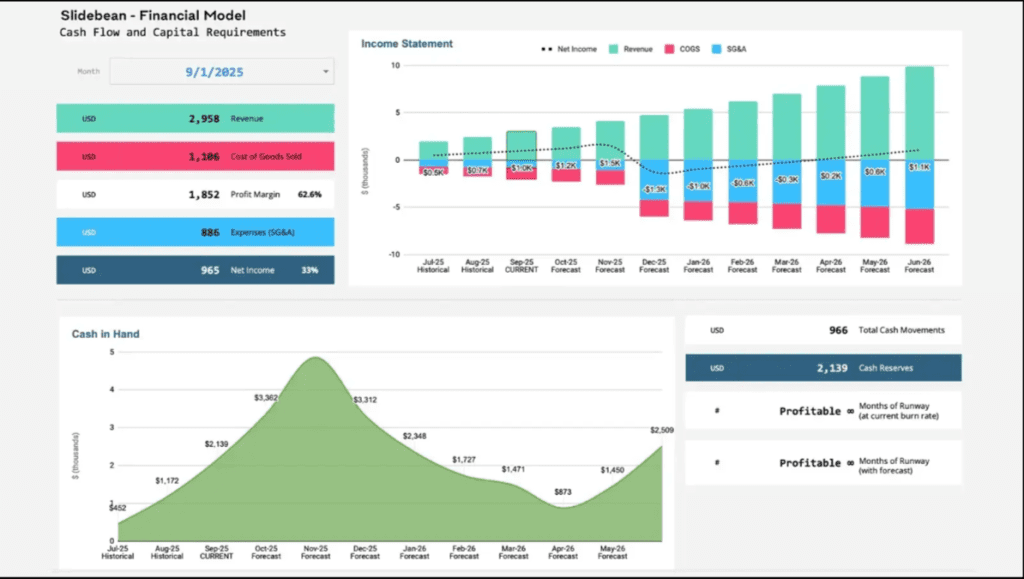
- Expense planning
- Runway calculation
- Startup valuation estimation
For founders, this is powerful.
Instead of just “looking good,” your deck becomes financially credible.
Who Should Use Slidebean?
- Startup founders
- SaaS entrepreneurs
- Pre-seed & seed stage startups
- Startup consultants
- Accelerator applicants
- Founders preparing for Demo Day
If you’re building a Slidebean pitch deck for investors, this tool makes sense.
Who Should NOT Use Slidebean?
- School students making class presentations
- Corporate teams doing internal slides
- People looking for free PPT maker
- Basic YouTube presentation creators
For general presentations, tools like Canva or Beautiful.ai may be more budget-friendly.
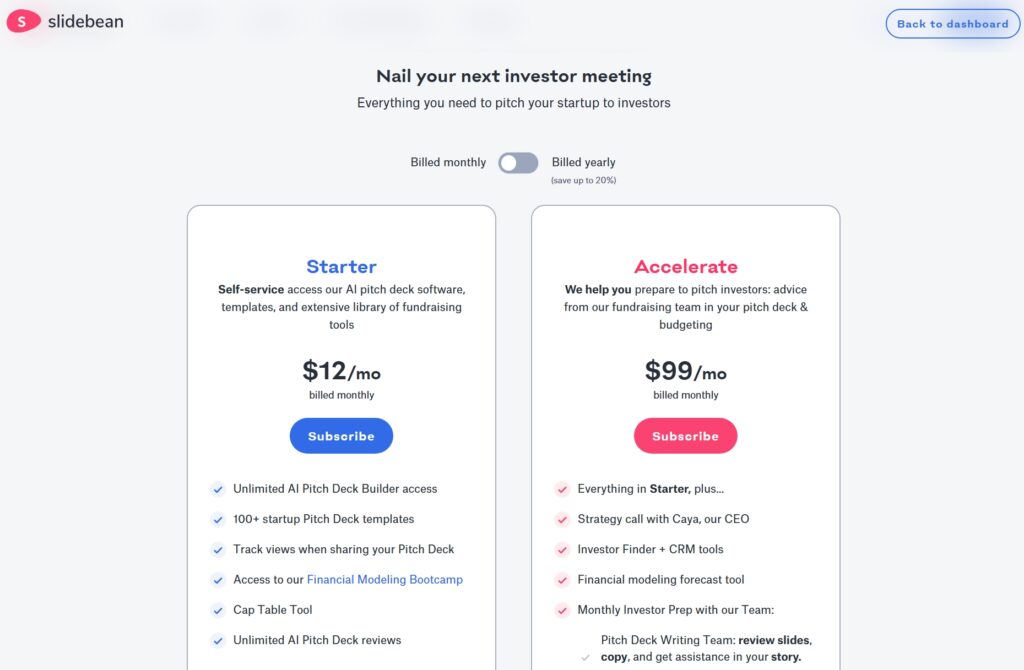
Slidebean Pricing
Slidebean 2026 verified pricing: All Access plan at $29/month (monthly) or $20/month (annual, billed $240/year) — full pitch deck creation, AI outline generator, startup-focused templates, design automation, and presentation analytics. The Financial Model and Forecasting tools are a separate add-on. Concierge Service (professional deck creation by Slidebean’s design team) starts at $1,500 per deck. Slidebean is considerably more expensive than general AI presentation tools — the premium is justified only for founders actively fundraising who need investor-grade pitch structure and valuation modeling built-in. For general business presentations, Gamma or Canva deliver significantly better value per dollar.
- Paid Plan
Slidebean Pros and Cons
Pros
- AI-structured startup storytelling
- Professional investor-grade templates
- Built-in financial model
- Startup valuation tools
- Strong educational content (Slidebean YouTube channel is very helpful)
- Saves time for founders
Cons
- Not ideal for non-startup presentations
- Pricing is higher than basic PPT tools
- Learning curve for financial modeling
- Limited design flexibility compared to Canva
6.Tome (2026 Update: Original Product Discontinued)
⚠️ 2026 Status Update: The original Tome presentation product was discontinued in April 2025. The founding team pivoted to a sales intelligence company (Lightfield), and the Tome brand was subsequently acquired by AngelList. A product marketed as “Tome App AI” continues under similar branding but focuses exclusively on sales and marketing use cases, has removed AI generation from its free plan, and does not support PowerPoint (.pptx) export at any plan level. For storytelling-style AI presentations with PowerPoint export, Gamma App is the recommended current alternative. The description below reflects how Tome originally operated.
If you have ever opened PowerPoint and felt stuck on slide one.
You don’t need more templates. You need better storytelling.
That’s exactly where Tome AI positions itself — not just as a slide tool, but as “Tome the AI powered storytelling format.”
What Is Tome AI?
Tome AI is an AI presentation and storytelling platform that turns prompts into structured, visually engaging presentations.
Unlike traditional tools that give you blank slides, Tome AI presentation maker generates:
- Structured story flow
- Headlines
- Content
- AI-generated visuals
- Layout design
- Even narrative suggestions
Think of it work as:
ChatGPT + Slides + Story Architect — combined.
You can access it through the Tome AI website or Tome AI app, create an account via Tome AI login, and start building instantly.
The Core Problem That Tome AI Solves (Better Than Other Tools)
Most AI presentation tools generate slides.But they don’t think in stories.
Traditional Tools as (PowerPoint / Google Slides)
- Manual design
- Manual structure
- Time-consuming
- Requires storytelling skill
Many AI Slide Makers
- Generate bullet points
- Generic layouts
- No narrative flow
- Looks robotic
What Makes Tome AI Different?
Tome AI-powered storytelling focuses on:
- Narrative arc
- Visual flow
- Persuasion
- Modern web-style presentation
- Interactive storytelling format
That’s why many creators call it:
“Tome the AI powered storytelling format” — not just slides.
How Tome AI Presentation Maker Works
Using Tome AI presentation maker free (limited version):
- Go to Tome AI website
- Complete Tome AI login
- Enter prompt (e.g., “Create investor pitch for AI SaaS”)
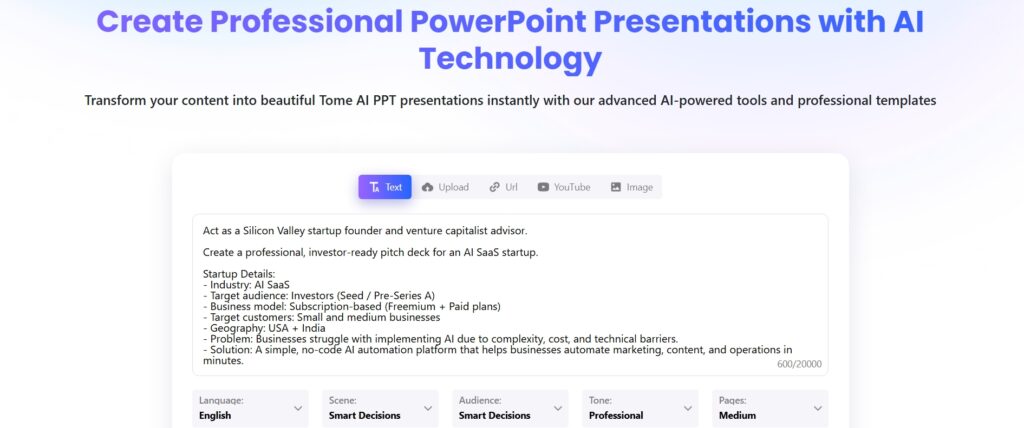
- AI generates structured story
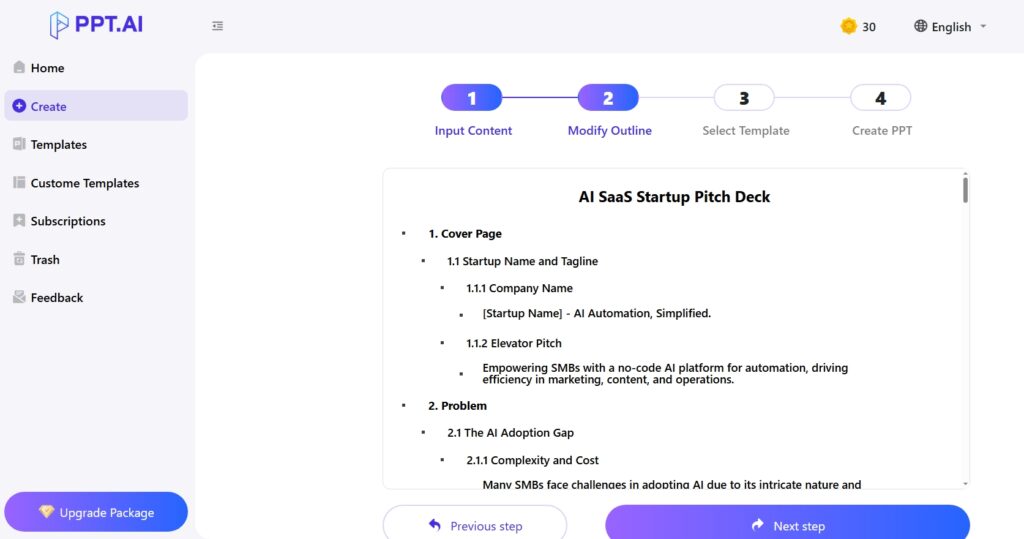
- Edit content
- Add images (AI-generated or upload)
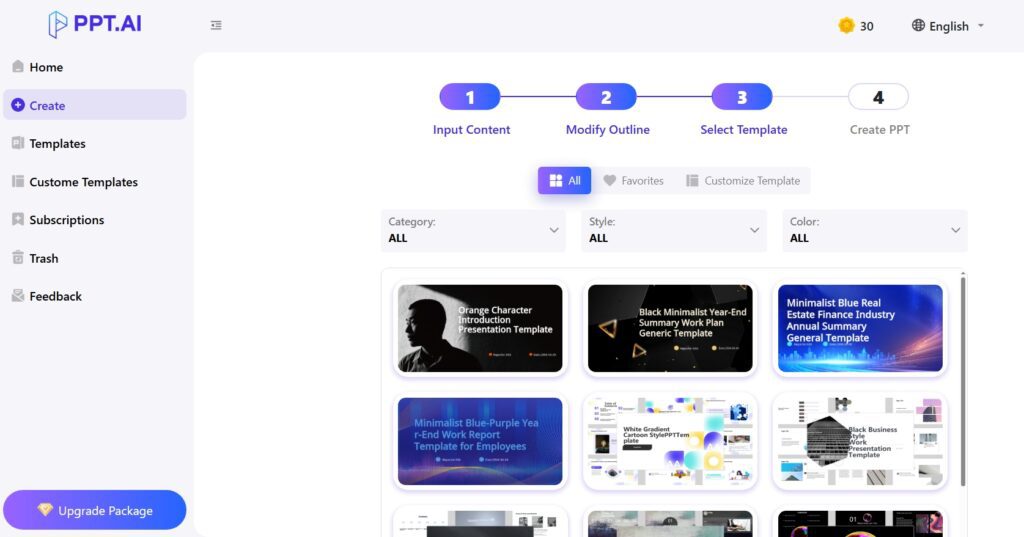
- Share as link
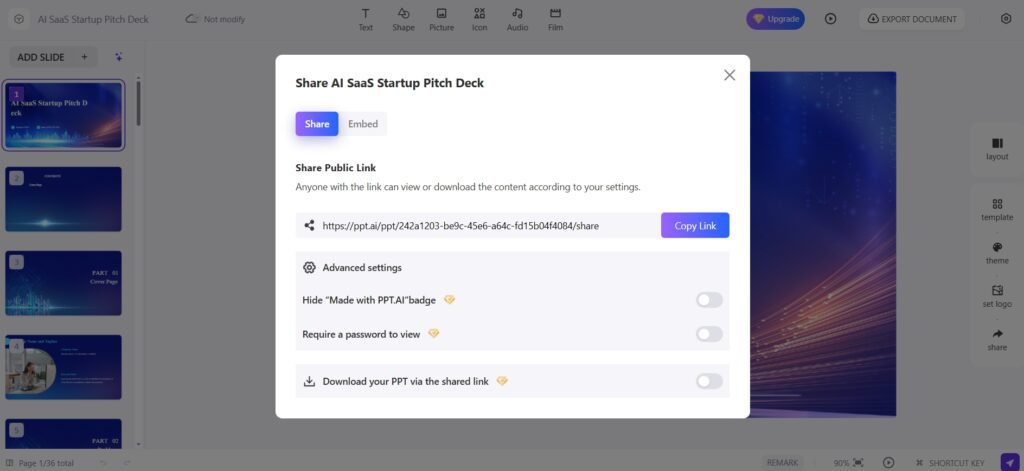
Unlike Tome AI PowerPoint, it’s web-based and link-first — designed for sharing, not exporting heavy files.
You can still export, but the real power is in interactive web format.
Real Practical Use Cases (Not Just Theory)
1.AI Presentation for YouTube Creators
As I run an AI blog like CognifyFuture, I can use Tome AI slides to:
- Create visual storytelling for tool comparisons
- Share interactive AI tool breakdowns
- Turn blog posts into presentation content
2.Agency Client Proposals
Instead of PDFs, send:
Interactive Tome AI presentation link
With visuals + embedded content
More engaging than static PowerPoint.
Who Should Use Tome AI?
Best For:
- Startup founders
- Content creators
- Solopreneurs
- AI bloggers
- Marketing agencies
- Course creators
- Story-driven presenters
Not Ideal For:
- Corporate teams that require heavy PowerPoint compatibility
- Offline-only workflows
- Very data-heavy financial modeling (Excel-based decks work better)
- Complex animations required
Tome AI Pricing
Tome App AI 2026 Pricing (current sales-focused product): Free tier available with limited features; Pro at $20/month for AI generation, design tools, 100+ templates, and PDF export; Enterprise pricing custom. Important caveat: the current product does not support PowerPoint (.pptx) export at any plan level — files can only be shared as web links or PDFs. For general AI presentation creation requiring PowerPoint export, Gamma ($8–$20/month) is the recommended alternative.
Free Plan (Tome AI free)
- Limited AI generations
- Basic features
- Great for testing
Paid Plans
- More AI credits
- Collaboration features
- Advanced storytelling tools
- Team workspace

Tome Pros & Cons
Pros
- Strong storytelling structure
- Modern web-style presentations
- AI-generated visuals
- Faster pitch deck creation
- Easy sharing via link
- Clean UI
- Good for narrative-driven decks
Cons
- Limited PowerPoint export flexibility
- Not ideal for detailed data dashboards
- AI content still needs editing
- Free version has limits
7.Beautiful.ai
If you’ve ever spent 3–4 hours adjusting slide alignment, resizing images, and fixing messy layouts in PowerPoint, you already understand the frustration, and Beautiful.ai is trying to eliminate this.
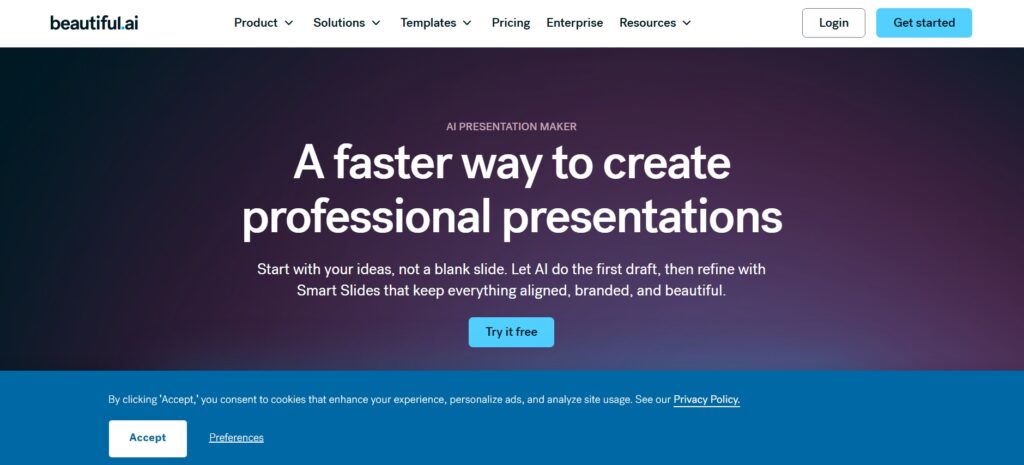
Beautiful.ai is not just another AI presentation maker. It’s a design-intelligent presentation platform that automatically adjusts layouts as you add content. Instead of you fixing the design, the design fixes itself.
What is Beautiful.ai?
Beautiful.ai is an AI-powered presentation AI Tool that automatically designs your slides in real time using smart templates.
Unlike traditional tools like:
- Microsoft PowerPoint
- Google Slides
Where you manually adjust everything but
Beautiful.ai uses design automation and layout rules so slides always look polished, aligned, and professional.
What Problem Does Beautiful.ai Solve (That Other Tools Don’t)?
1.The “Design Skills Gap”
Most founders, marketers, and students are not designers.
Traditional tools give you:
- Blank slide
- Total freedom
- Total confusion
Beautiful.ai gives you:
- Smart templates
- Auto-alignment
- Auto-resizing
- Layout rules that prevent bad design
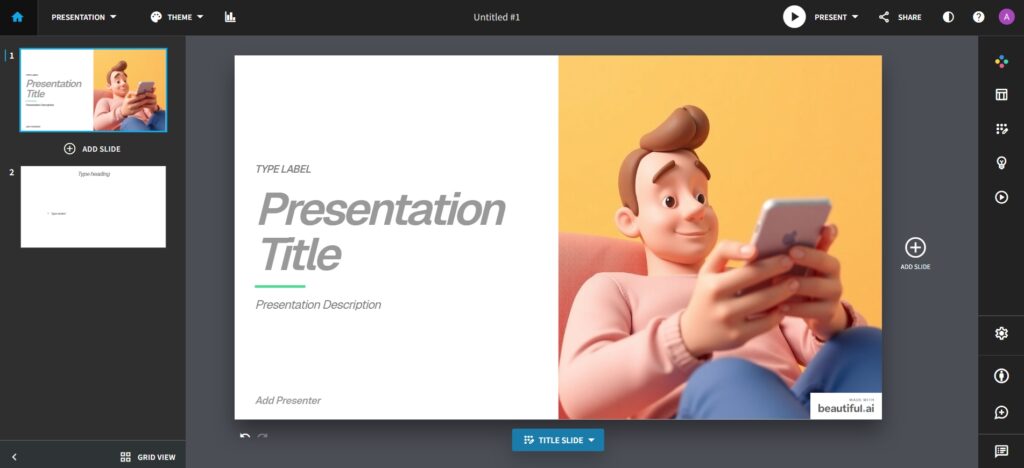
You literally cannot break the slide layout.
2.Time Waste in Formatting
In tools like PowerPoint:
- Resize image → Text moves
- Add bullet → Layout breaks
- Add chart → Spacing off
In Beautiful.ai:
- Add content → Layout auto-adjusts
- Add more text → Slide reorganizes
- Insert chart → Fits perfectly
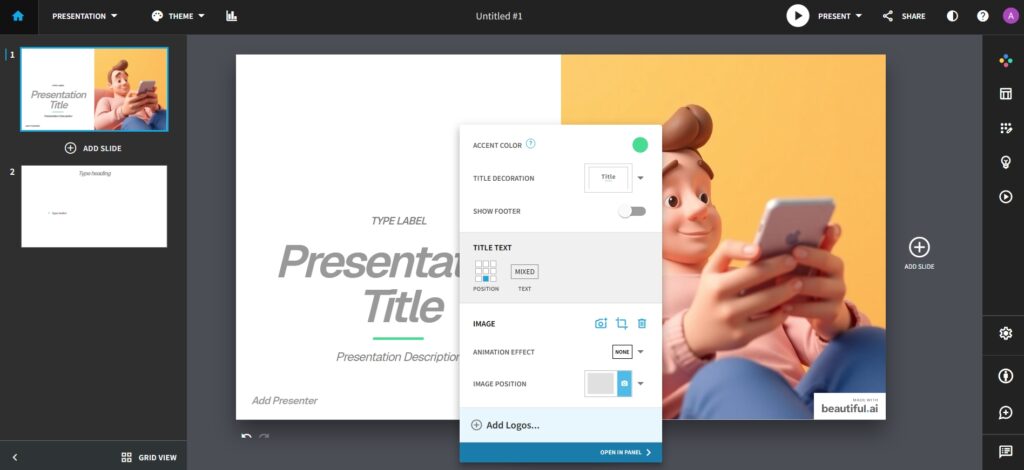
It removes 70% of formatting work.
3.Inconsistent Team Slides
When teams collaborate in:
- Canva
- Google Slides
Design consistency depends on each team member.
Beautiful.ai locks brand styles:
- Fonts
- Colors
- Spacing
- Logo placement
This makes it powerful for agencies & startups.
Real Practical Use Cases
1.Sales Presentation
Sales teams can:
- Quickly duplicate deck
- Customize slides per client
- Keep brand consistency
No more broken formatting before meetings.
2.Marketing & Reporting
Marketing teams use it for:
- KPI dashboards
- Campaign presentations
- Charts auto-format professionally.
Who Should Use Beautiful.ai?
- Startup founders
- Marketing teams
- Consultants
- Agencies
- Non-designers
- Business professionals
- Course creators
Who Should NOT Use It?
- Professional graphic designers who want full creative freedom
- Users who need heavy animation control
- Those who prefer offline desktop software
- People looking for fully free tools
If you want pixel-perfect creative control, PowerPoint may still be better.
Beautiful.ai Pricing
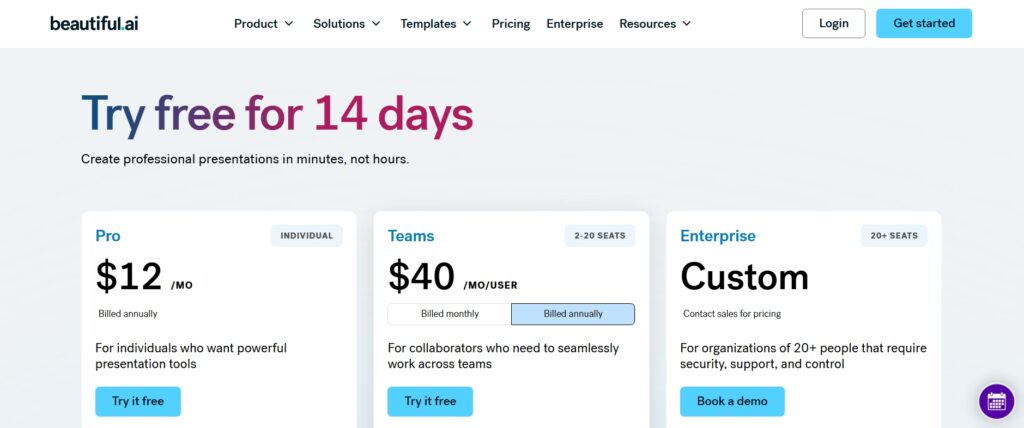
Beautiful.ai 2026 verified pricing: Pro plan at $12/month (annual billing) or $15/month monthly — unlimited slides, full smart template library, auto-layout design engine, and presentation analytics. Team plan at $40/user/month — adds brand control, shared asset library, team collaboration, and centralised administration. A 14-day free trial is available with no credit card required. There is no permanent free plan. Enterprise pricing is custom. Best value for marketing teams and agencies who need brand-consistent slide output without manual design work.
Free Trial
- Limited access
- Basic features
Pro Plan (Individual)
- Monthly subscription
- Full template access
- Unlimited slides
Team Plan
- Collaboration tools
- Brand control
- Shared asset library
Beautiful.ai Pros and Cons
Pros
- Extremely beginner-friendly
- Smart auto-layout design
- Saves 50–70% design time
- Professional pitch deck templates
- Brand control for teams
- Cloud-based collaboration
Cons
- Limited custom design flexibility
- Fewer animation options
- Requires internet connection
- Not ideal for complex infographics
8.Canva AI
If you’ve ever opened a blank PowerPoint or design canvas and thought,
“I know what I want, but I don’t know how to design it.”
That is exactly the gap Canva AI fills.
Unlike traditional design tools that expect creativity + technical skill, Canva AI turns ideas into ready-made designs in minutes — presentations, social posts, resumes, marketing creatives, videos, and more.
And the biggest difference?
It’s built for non-designers first.
It combines AI writing + AI design + AI presentation maker in one place.
What is Canva AI?
Canva AI is a collection of AI-powered features inside Canva that help users generate designs, write content, create presentations, edit images, and even produce videos automatically.
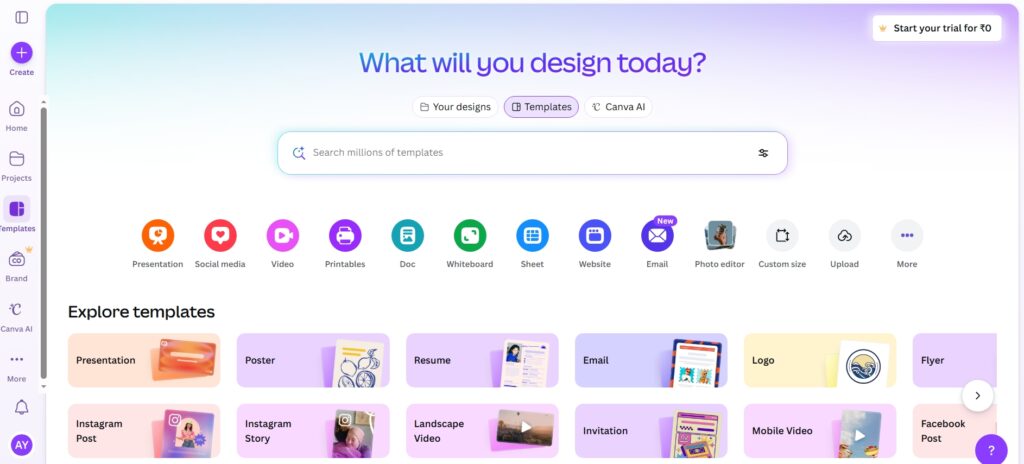
Key AI Features:
- Magic Design (AI layout generator)
- Magic Write (AI text generator)
- AI Presentation Maker
- Text-to-Image
- Background Remover
- AI Resize (Magic Switch)
- AI Video tools
What Problem Does Canva AI Solve?
1.Blank Slide Problem
Most people struggle with starting a presentation. Canva AI generates:
- Full slide decks from a single prompt
- Structured content with headings
- Matching design themes
Compared to tools like:
- Microsoft PowerPoint (manual design heavy)
- Google Slides (basic templates)
- Beautiful.ai (design automation but less flexible outside presentations)
Canva AI gives:
- Presentation
- Social media post
- Resume
- Poster
- Video
- Website page
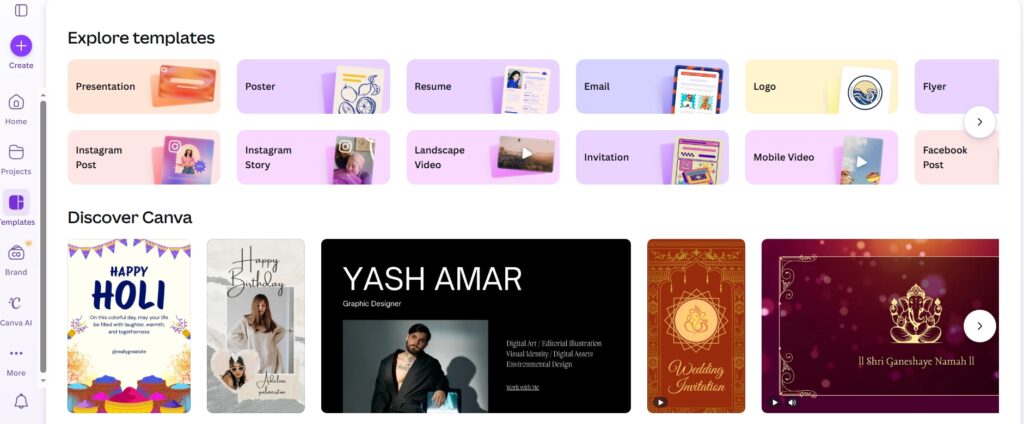
All in one ecosystem.
2.“I’m Not a Designer” Problem
Most tools assume you understand:
- Alignment
- Font pairing
- Visual hierarchy
Canva AI handles that automatically.
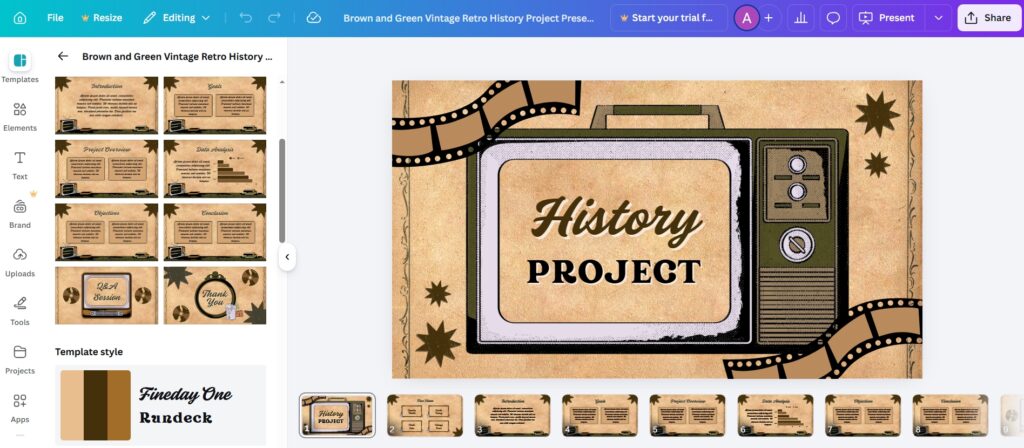
It selects:
- Fonts
- Layout
- Color balance
- Visual elements
You focus on ideas — not spacing.
3.Content + Design in One Tool
Other tools separate:
- AI writing tools (like ChatGPT)
- Design tools
- Presentation tools
Canva AI combines:
- AI writing
- AI designing
- AI presentation building
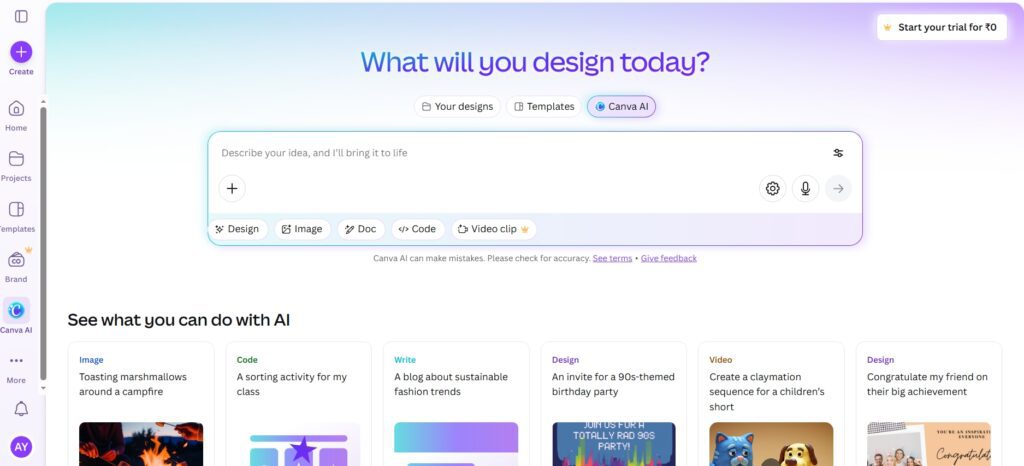
That integration is its real power.
Real Practical Use Cases
1.Teacher Creating Class Presentation
Topic: “Climate Change for Grade 8”
Canva AI:
- Generates age-appropriate slides
- Adds visuals automatically
- Structures lessons clearly
2.Instagram Content Creator
Prompt:
“Create 5 Instagram carousel slides about productivity tips.”
It creates:
- Headline slide
- Clean layout
- Visual consistency
Who Should Use Canva AI?
- Entrepreneurs
- Students
- Teachers
- Content creators
- Small business owners
- Marketing beginners
If someone wants speed + simplicity, Canva AI works beautifully.
Who Should NOT Use Canva AI?
- Professional graphic designers needing pixel-level control
- Advanced motion designers
- Enterprise-level brand systems requiring strict design compliance
- People needing deep data visualization tools
Canva AI Pricing
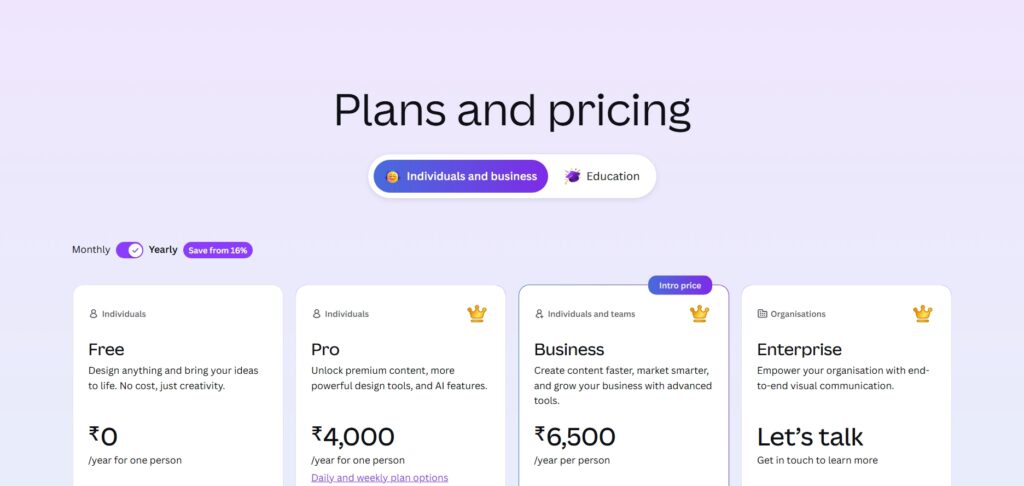
Canva 2026 verified pricing: Free plan — 250,000+ templates, basic AI features, limited background remover, perfect for students and casual creators. Canva Pro at $15/month (monthly) or $120/year ($10/month) — Magic Resize, full Background Remover, Brand Kit, unlimited AI generations with Magic Write and Magic Design, premium content library. Canva Teams at $10/user/month (annual, minimum 3 users) — all Pro features plus shared brand controls, team workflows, and centralised billing. Canva for Education and Canva for Nonprofits are available free with verification.
Free Plan
- Basic templates
- Limited AI usage
- Limited background remover
Best for: Students & beginners
Canva Pro
- Full AI features
- Magic Resize
- Background remover
- Brand kit
- Premium templates
Ideal for: Creators & small businesses
Canva Teams
- Team collaboration
- Brand control
- Shared assets
Best for: Agencies & companies
Pricing varies by country, but Pro is generally affordable monthly or yearly.
Pros of Canva AI
- Beginner-friendly
- All-in-one ecosystem
- Huge template library
- AI presentation maker is fast
- Free version available
- Cloud-based (no heavy software needed)
- Easy team collaboration
Cons of Canva AI
- AI output can feel generic
- Limited deep customization vs Adobe
- Advanced features locked behind Pro
- AI text sometimes basic
- Not ideal for complex financial presentations
9.Prezi AI
If you’re tired of boring slide-by-slide presentations and want something more dynamic, interactive, and visually memorable, Prezi AI might be exactly what you’re looking for.
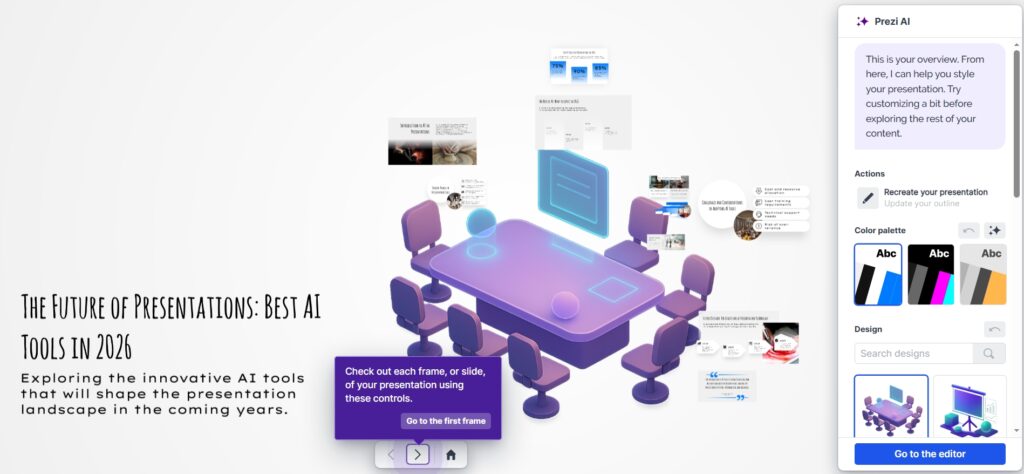
Unlike traditional slide tools, Prezi AI uses a zooming canvas instead of linear slides And now with AI built in, it can generate structured, visually engaging presentations in minutes.
What is Prezi AI?
Prezi AI is an AI-powered presentation maker that automatically creates structured, visually dynamic presentations using Prezi’s signature zoom-based canvas format.
Instead of:
Slide 1 → Slide 2 → Slide 3
Prezi creates:
One big visual canvas → Zoom into ideas → Zoom out to show big picture → Create visual storytelling flow
This make it feel more like a story than a slideshow.
What Problems Does Prezi AI Solve (That Others Don’t)?
Most AI presentation tools (like Canva, Tome, Beautiful.ai) generate static slides.
Common Problems in Other Tools:
- Linear slide structure
- Audience loses interest
- Too many bullet points
- Feels predictable
- Hard to show big-picture connections
What Prezi AI Does Differently:
- Creates a non-linear zoom canvas
- Shows relationships between ideas visually
- Makes storytelling feel cinematic
- Keeps audience engaged
- Better for conceptual topics
If your presentation needs energy + movement + storytelling, Prezi AI stands out.
How Prezi AI Works (Simple Explanation)
- You enter a topic or upload content.
- AI creates:
- Outline
- Structure
- Visual layout
- Zoom path
- You customize:
- Themes
- Fonts
- Visual blocks
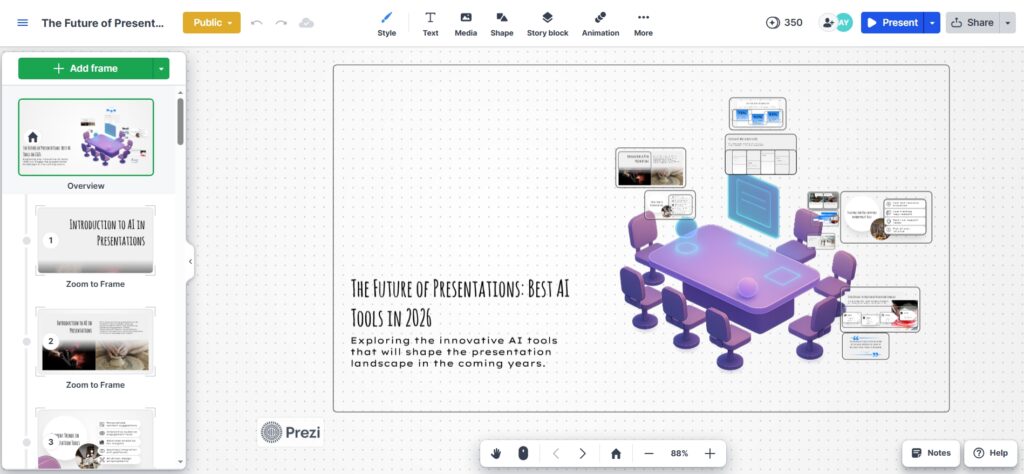
- Present live or share link.
It’s like having:
AI content strategist + AI designer + motion designer in one tool.
Prezi AI Real Practical Use Cases (Not Generic)
1.Corporate Strategy Meeting
Show:
- Company vision (zoom out)
- Department strategies (zoom in)
- Metrics (zoom deeper)
It visually connects everything.
2.Teacher Explaining Complex Concepts
Example: “Digital Marketing Funnel”
Start with:
- Full funnel overview
- Zoom into:
- Awareness
- Zoom into:
- Conversion
Students understand relationships better.
Who Should Use Prezi AI?
Best For:
- Startup founders
- Teachers & trainer
- Marketing professionals
- Business consultants
- Storytelling-heavy presenters
- Webinar hosts
Not Ideal For:
- People who want simple traditional slides
- Formal corporate environments that demand PowerPoint format
- Users who prefer static, minimal design
- People uncomfortable with motion-based visuals
Prezi AI Pricing
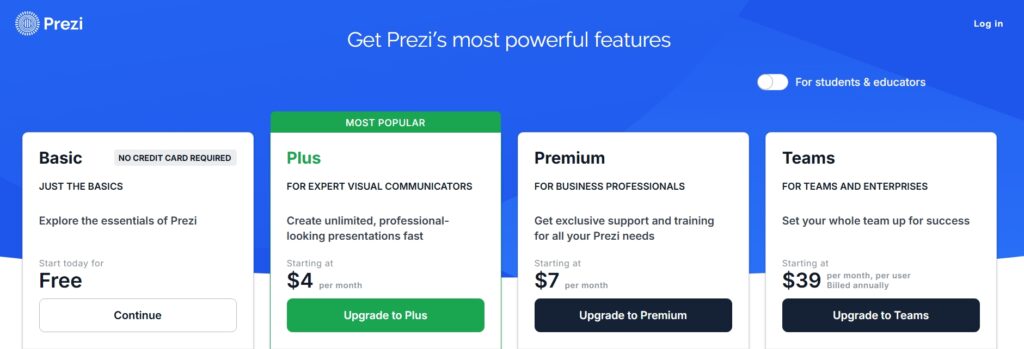
Prezi 2026 verified pricing: Free — limited presentations, Prezi branding, view-only sharing. Standard at $7/month (annual) — full creation tools, basic privacy, PDF download. Plus at $12/month (annual) — offline access, premium templates, analytics. Premium at $15/month (annual) — full feature access, priority support, advanced analytics. Teams from $15/user/month — central administration, brand control, team analytics. Annual billing saves approximately 33% vs monthly rates across all plans.
- Free plan (limited features)
- Standard plan (individual creators)
- Plus / Premium plan (professionals)
- Business plans (teams & enterprises)
Prezi AI Pros & Cons
Pros
- Unique zoom presentation style
- AI-generated structure
- Great for storytelling
- Visually memorable
- Better audience engagement
- Good for conceptual topics
Cons
- Learning curve if new to Prezi
- Not ideal for very data-heavy reports
- Some audiences prefer traditional slides
- Advanced features require paid plan
10.Decktopus AI
If you’ve ever had to create a presentation in 30 minutes for a client, investor, you know the pain.
Blank slides.
Design confusion.
Content structure chaos.
That’s exactly where Decktopus AI positions itself — not just as another AI slide generator, but as a guided presentation assistant that thinks with you.
What is Decktopus AI?
Decktopus AI is an AI-powered presentation maker that generates structured slides, content, design, speaker notes, and even form elements automatically.
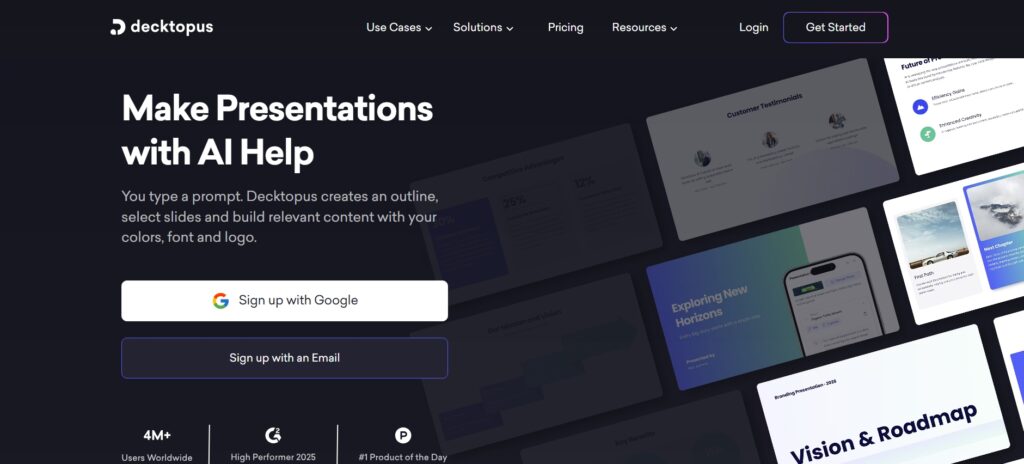
Instead of just giving you slides, it:
- Asks about your topic
- Understands your goal (pitch, webinar, training, sales, etc.)
- Builds structured slides
- Suggests content
- Designs everything automatically
- It’s built for speed + structure — not just aesthetics.
What Problem Does Decktopus AI Solve?
Most AI presentation tools fall into 3 categories:
- Design-first tools (like Canva) → Great visuals, weak structure
- Pitch-focused tools (like Slidebean) → Strong for startups only
- Storytelling tools (like Tome) → Beautiful, but less practical for business decks
Decktopus solves something different:
It eliminates the “What should I put on each slide?” problem.
It doesn’t just generate slides.It builds presentation logic.
What Makes It Different?
- Built-in slide flow suggestions
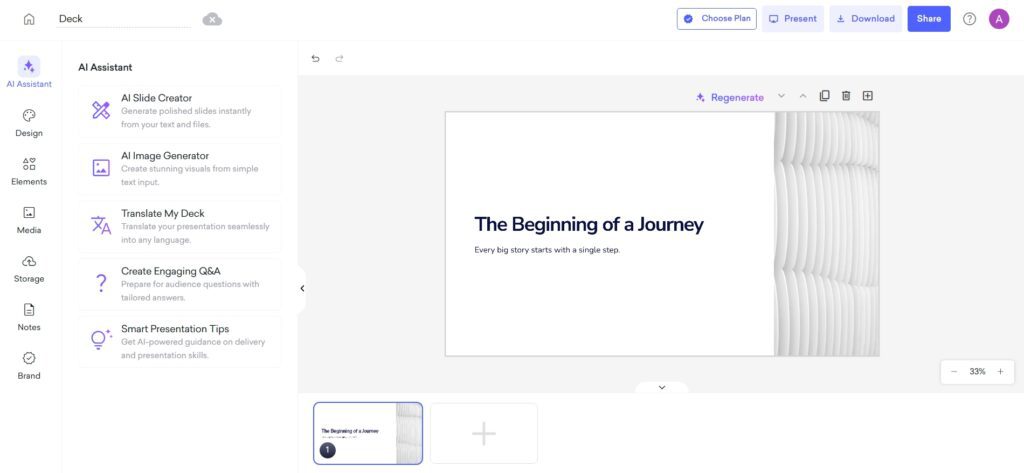
- Auto speaker notes feature
- Built-in forms (collect audience data during presentation)
- Ready-made structures for business use cases
That makes it very practical for:
- Sales presentations
- Webinars
- Training sessions
- Client proposals
Real Use Cases (Practical Examples)
1.Startup Founder Creating Pitch Deck
Instead of:
- Thinking about slide order
- Designing layouts
- Writing content
- Adding notes
You input:
“AI SaaS for email automation targeting small businesses”
Decktopus generates:
- Problem slide
- Solution slide
- Market opportunity
- Business model
- Competitor comparison
- Roadmap
- CTA
You refine it and Done.
2.Sales Professional Creating Client Proposal
Decktopus:
- Creates structured proposal slides
- Adds pricing breakdown slides
- Suggests persuasive content
- Adds speaker notes
This is huge for people who are not designers.
3.Online Educator / Webinar Host
It:
- Structures modules
- Creates lesson breakdown
- Adds interactive questions
- Generates notes
Very useful for trainers.
Who Should Use Decktopus AI?
Best For:
- Startup founders
- Sales professionals
- Coaches & trainers
- Agencies creating client decks
- Non-designers who want fast results
- People who struggle with slide structure
Not Ideal For:
- Professional designers who want full creative control
- People who prefer manual design
- Highly animation-focused presentations
- Advanced brand customization needs
Decktopus AI Pricing
Decktopus 2026 verified pricing: Free plan — limited slides and features, Decktopus branding. Pro at $9.99/month (annual billing, approximately $14.99/month monthly) — unlimited presentations, AI content generation, speaker notes, branding removed, custom forms and interactivity. Business at $19.99/month (annual) — team collaboration, advanced branding, white-label sharing, priority support. Annual billing saves approximately 33% vs monthly. Decktopus is one of the most affordable AI presentation tools for individual users at under $10/month.
- Free Plan (limited slides & features)
- Pro Plan (monthly subscription with full AI features)
- Business Plan (team collaboration & branding features)

Decktopus AI Pros & Cons
Pros
- Extremely beginner-friendly
- Structured slide flow
- AI-generated speaker notes
- Business-ready templates
- Built-in forms & interactivity
- Saves massive time
Cons
- Limited deep customization
- Design flexibility is lower than Canva
- Not ideal for heavy brand personalization
- Advanced animations are limited
AI Presentation Tools Comparison (Use Case Wise)
| Use Case | Best Tool | Why It’s Best | Alternative Tools |
|---|---|---|---|
| Fast AI-generated presentations | Gamma | Generates full presentations from a prompt or outline in seconds and supports multimedia embeds. | Decktopus, Canva AI |
| Convert documents to slides | SlideSpeak | Converts PDFs, Word files, and existing content directly into presentations. | MagicSlides |
| Google Slides automation | MagicSlides | Works inside Google Slides and automatically converts text or topics into slides. | SlideSpeak |
| Template-based presentations | Slidesgo | Huge library of ready-made templates for business, education, and creative presentations. | Canva AI |
| Startup pitch decks | Slidebean | Designed specifically for investor pitch decks with structured storytelling and startup templates. | Beautiful.ai |
| Professional business presentations | Beautiful.ai | Smart design engine automatically adjusts layouts for polished corporate slide. | Canva AI |
| Marketing & visual presentations | Canva AI | Massive design assets and drag-and-drop editor for visually rich presentations. | Gamma |
| Storytelling presentations | Tome | Generates narrative-style presentations with multimedia storytelling. | Gamma |
| Interactive presentations | Prezi AI | Uses zoom-based navigation to create dynamic, non-linear presentations. | Canva AI |
| Sales presentations | Decktopus | AI creates slides, speaker notes, and structured decks quickly for sales teams. | Slidebean |
AI Presentation Tools Feature Comparison
| Tool | AI Generation | Templates | Best Feature |
|---|---|---|---|
| Gamma | ✅ | Medium | Interactive web presentations |
| SlideSpeak | ✅ | Basic | Convert documents to slides |
| MagicSlides | ✅ | Basic | Works inside Google Slides |
| Slidesgo | ❌ | Huge | Large template library |
| Slidebean | ✅ | Medium | Startup pitch deck builder |
| Beautiful.ai | ⚠️ | Professional | Auto slide design |
| Canva AI | ✅ | Massive | All-in-one design platform |
| Tome | ✅ | Medium | AI storytelling slides |
| Prezi AI | ✅ | Limited | Zoom-style presentations |
| Decktopus | ✅ | Medium | AI speaker notes |
How to Choose the Right AI Tool for Presentation
With dozens of AI presentation generators available today, choosing the right tool depends on your goal, workflow, and level of customization needed. Some tools focus on speed and automation, while others prioritize design flexibility or storytelling.
Here are the most important factors you should consider before selecting an AI presentation tool.
1.Identify Your Presentation Goal
The first step is to understand what type of presentation you need to create.
Different tools are Design for different presentation styles.
| Goal | Recommended Tool |
|---|---|
| Quick AI-generated slides | Gamma |
| Startup pitch deck | Slidebean |
| Professional business presentation | Beautiful.ai |
| Marketing or visual presentation | Canva AI |
| Interactive presentation | Prezi AI |
| Storytelling presentation | Tome |
For example, if you are preparing for an investor pitch deck, a specialized platform like Slidebean is often more suitable because it includes startup-focused slide structures such as problem, solution, traction, and financial projections.
2.Consider Ease of Use
Some AI presentation tools are designed for beginners, while others require more customization and editing.
If you want a simple AI-powered workflow, tools like Gamma and Decktopus allow you to generate slides from a single prompt.
However, if you prefer more design control, tools like Canva AI provide more customization options but may take slightly longer to design a presentation.
A good AI presentation tool should allow you to:
- Generate slides quickly
- Edit content easily
- Export presentations in common formats
- Collaborate with your team
3.Check Template Quality
Template play a crucial role in creating professional looking presentation.
High-quality template helps you:
- Maintain consistent design
- Save time on layout adjustments
- Create visually appealing slides
For users who rely heavily on templates, Slidesgo and Canva AI offer some of the largest template libraries available.
On the other hand, Beautiful.ai focuses more on automatic slide formatting, which ensures slides remain visually balanced without manual design work.
5.Evaluate AI Content Generation
Not all AI presentation tools generate content in the same way.
Some tools only assist with slide design, while others can generate entire presentations automatically.
Tools like Gamma, Tome, and Decktopus can:
- Create slide outlines
- Generate text content
- Suggest visuals
- Add speaker notes
This can significantly reduce the time needed to prepare presentation.
5.Look at Collaboration Features
If you work with a team, collaboration features become essential.
Many modern AI presentation tools allow multiple users to:
- Edit slides simultaneously
- Leave comments
- Share presentations via links
Tools like Canva AI, Beautiful.ai, and Gamma offer strong collaboration features that are useful for marketing teams, agencies, and startups.
6.Check Export and Integration Options
Another important factor is whether the presentation tool supports exporting to commonly used formats.
You may need to export your slides as:
- PowerPoint (.PPTX)
- Google Slides
- Shareable web links
For example:
- MagicSlides integrates directly with Google Slides
- Gamma allows web-based interactive presentations
- Canva AI supports multiple export formats
Choosing a tool that fits your workflow can save significant time.
Quick Decision Guide
If you’re unsure About which AI presentation tool to choose, this quick guide can help you alot.
| If You Need | Choose |
|---|---|
| Fast AI slide generation | Gamma |
| A startup pitch deck | Slidebean |
| Professional business slides | Beautiful.ai |
| Creative and marketing presentations | Canva AI |
| Story-based presentations | Tome |
| Interactive presentations | Prezi AI |
| Google Slides automation | MagicSlides |
| Ready-made templates | Slidesgo |
| Document-to-presentation conversion | SlideSpeak |
| Sales presentations | Decktopus |
Best Practices to Use AI Tools for Presentation Effectively
AI presentation tool can dramatically reduce the time required to create slides. However, simply generating slides with AI is not enough to create a compelling presentation. To get the best results, you should combine AI automation with human creativity and storytelling.
Here are some proven best practices to help you to use AI presentation tools more effectively.
1.Start With a Clear Presentation Goal
Before using any AI presentation generator, clearly define the purpose of your presentation.
Ask yourself questions such as:
- Who is the target audience?
- What is the key message of the presentation?
- What action do you want the audience to take?
For example:
| Presentation Type | Goal |
|---|---|
| Investor pitch | Convince investors to fund your startup |
| Marketing presentation | Promote a product or service |
| Educational presentation | Explain a concept clearly |
| Sales presentation | Persuade potential customers |
Providing a clear goal helps AI tools generate more relevant and structured slides.
2.Use Detailed Prompts
AI presentation tools work best when you provide specific prompts instead of vague instructions.
For example:
❌ Weak prompt
“Create a presentation about digital marketing.”
✅ Better prompt
“Create a 10-slide presentation about digital marketing strategies for small businesses in 2026, including SEO, social media marketing, and email marketing.”
A detailed prompt helps the AI generate:
- Better slide structure
- Relevant content
- More useful examples
3.Edit and Refine AI-Generated Content
AI-generated slides should always be reviewed and refined before presenting them to an audience.
Even the best AI tools may generate content that is:
- Too generic
- Slightly inaccurate
- Not aligned with your brand voice
You should always:
- Simplify long text blocks
- Adjust tone and messaging
- Add relevant examples
- This ensures your presentation feels authentic and professional.
4.Keep Slides Simple and Focused
One common mistake when using AI tools is allowing slides to become too text-heavy.
A good presentation slide should communicate one key idea at a time.
Follow the 6×6 rule when possible:
- Maximum 6 lines per slide
- Maximum 6 words per line
Simple slides improve audience engagement and make presentations easier to understand.
5.Use Visuals to Enhance Your Message
Visual elements make presentations far more engaging than text-only slides.
AI presentation tools often provide features such as:
- Automatic image suggestions
- Icon libraries
- Charts and data visualizations
- AI-generated graphics
Use visuals to:
- Highlight key data
- Explain complex ideas
- Improve storytelling
Visual content helps audiences remember information more effectively.
6.Customize the Design
AI tools can automatically generate slide layouts, but you should still customize the design to match your brand or style.
Consider adjusting:
- Brand colors
- Font styles
- Logo placement
- Slide backgrounds
This ensures your presentation looks professional and consistent.
7.Add Storytelling Elements
Great presentations follow a clear narrative structure.
A simple storytelling framework you can use is:
- Problem – What challenge exists?
- Solution – How your idea solves it
- Benefits – Why it matters
- Evidence – Data or examples
- Conclusion – Key takeaway
Using storytelling makes presentations more engaging and persuasive.
Common Mistakes to Avoid While Making Presentation
Even with AI assistance, many users make mistakes that reduce the effectiveness of their presentations.
Avoid these common issues:
- Relying completely on AI-generated content
- Adding too much text on slides
- Ignoring visual design
- Using inconsistent slide layouts
- Not reviewing AI-generated information
AI should be used as a productivity tool, not a complete replacement for human input.
Conclusion
AI presentation tools have transformed the way people create slides. What once took hours of designing, structuring, and formatting can now be done in minutes with the help of AI-powered platforms. Whether you are preparing a startup pitch deck, marketing presentation, business report, or educational slides, the right AI tool can significantly improve both speed and presentation quality.
In this guide, we explored some of the best AI presentation tools in 2026, including Gamma, SlideSpeak, MagicSlides, Slidesgo, Slidebean, Beautiful.ai, Canva AI, Tome, Prezi AI, and Decktopus. Each tool offers unique strengths depending on the type of presentation you want to create.
For example, tools like Gamma and Decktopus are ideal for quickly generating AI-powered slides, while Slidebean is better suited for startup founders who need investor-ready pitch decks. If design flexibility and visuals are important, Canva AI provides a powerful design ecosystem, while Beautiful.ai focuses on professional business presentations with automatic slide layouts. Meanwhile, tools like Prezi AI and Tome offer more interactive and storytelling-focused presentations.
The key to choosing the right AI presentation tool is understanding your specific use case, workflow, and level of customization needed. Some users prioritize speed and automation, while others prefer tools that offer more control over design and storytelling.
As AI technology continues to evolve, presentation software will become even more powerful, enabling users to create interactive, data-driven, and visually compelling presentations with minimal effort. Businesses, educators, marketers, and students can all benefit from these tools to communicate ideas more effectively.
Ultimately, the best AI presentation tool is the one that matches your presentation goals, simplifies your workflow, and helps you deliver your message clearly.
,{“id”:”faq-question-1768594880974″,”title”:”2.Which is the best AI presentation tool in 2026?”,”content”:”Gamma App, SlideSpeak, and MagicSlides are among the best AI tools for presentation depending on your use case.”,”visible”:true},{“id”:”faq-question-1768594896278″,”title”:”3.Can AI create PowerPoint presentations?”,”content”:”Yes. Tools like SlideSpeak export AI-generated slides directly to PowerPoint format.”,”visible”:true},{“id”:”faq-question-1768594912092″,”title”:”4.Are AI presentation tools free?”,”content”:”Most offer free trials with paid plans for advanced features.”,”visible”:true},{“id”:”faq-question-1768594925876″,”title”:”5.Are AI-generated presentations professional?”,”content”:”Yes, especially for business, education, and startups when reviewed and customized.”,”visible”:true},{“id”:”faq-question-1768594941915″,”title”:”6.Is Gamma App better than PowerPoint?”,”content”:”Gamma App focuses on storytelling and modern layouts, while PowerPoint offers traditional control.”,”visible”:true},{“id”:”faq-question-1768594957895″,”title”:”7.Can students use AI tools for presentations?”,”content”:”Absolutely. MagicSlides is especially popular among students and educators.”,”visible”:true},{“id”:”faq-question-1768594980317″,”title”:”8.Do AI presentation tools work offline?”,”content”:”Most AI tools for presentation are cloud-based and require internet access.”,”visible”:true},{“id”:”faq-question-1772742166708″,”title”:”9.How do AI presentation tools save time?”,”content”:”AI presentation tools save time by automating several tasks that traditionally require manual effort, including slide creation, design formatting, content generation, and visual selection. This allows users to focus more on delivering their message rather than designing slides.”,”visible”:true},{“id”:”faq-question-1772742177829″,”title”:”10.Can AI presentation tools integrate with Google Slides or PowerPoint?”,”content”:”Yes, many AI presentation tools support integration or export options for popular platforms. For example, u003cstrongu003eMagicSlidesu003c/strongu003e works directly with Google Slides, while tools like u003cstrongu003eGamma, Canva AI, and Beautiful.aiu003c/strongu003e allow presentations to be exported as PowerPoint files.”,”visible”:true}]} –>1.What are AI tools for Presentation?
2.Which is the best AI presentation tool in 2026?
3.Can AI create PowerPoint presentations?
4.Are AI presentation tools free?
5.Are AI-generated presentations professional?
6.Is Gamma App better than PowerPoint?
7.Can students use AI tools for presentations?
8.Do AI presentation tools work offline?
9.How do AI presentation tools save time?
10.Can AI presentation tools integrate with Google Slides or PowerPoint?





I am Ashish Yadav a software engineer and AI tools researcher with over five years of practical experience working with real-world systems and automation. I am founder of CognifyFuture, where I analyzes, tests, and breaks down AI tools with a focus on what actually works—not what’s trending.
My content is built on hands-on usage, not theory. Instead of generic advice, I focuses on real implementation—how AI tools can be used to automate tasks, improve efficiency, and solve any specific business or individual problems.
Through CognifyFuture, My aims is to eliminate confusion around AI by delivering clear, honest, and actionable insights that help users make smarter technology decisions.